This is an old revision of the document!
Table of Contents
Terminology & Syntax
This manual uses some conventions that might be unfamiliar. Burger Menu (or 3 bar menu) - This is typically an options menu in the top-right of the Browser application.
Key combinations
Some functions are accessed using keyboard combinations, these will typically be described as “special key” & “key”, where the special key is usually Ctrl, Alt, Windows Start or Mac Action button and the key is a normal key. See tips & tricks for some of these.
Navigation
When describing where a function is under the menu system you will see the form Menu→Optional Sub Menu→Menu item. Each menu layer is separated by “→”, so to get to the Sales Report you would see “Reporting→Accounts→Sales Report”
Field types
Text boxes
This is the standard input form, such as Location and Contact Name from the location screen below:-

You will sometimes see these as READ ONLY fields, e.g. Totals on the booking page. As the name suggests you cannot edit these and a No Entry symbol will show on hover.
Some text boxes will be defined as a specific type and behave accordingly. E.g.
Date field, these are being rolled out to replace the original “holray” style dates. Clicking on a date field will open a calendar,as below:-
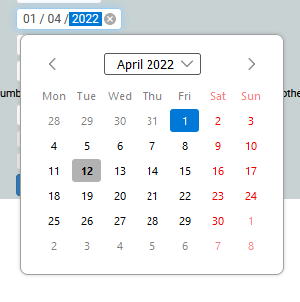
Some will only accept a valid email address, other only numeric values as appropriate. But all are simple input boxes.
Text Area
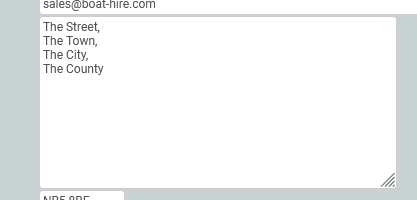
These are less common than text boxes but can be dragged to accommodate larger amounts of data. This example below from the Location page has a drag handle in the lower right corner, which when clicked and held, can be used to resize the box.
Checkboxes
Check boxes are used to toggle on and off, each check box is independent of the others.
They are used freqeuntly where a value is either set or not set, such as on the location page to set whether the location is available to book online.

You will also see them used ina group where it makes sense to do so, such as the basic profile setting on the units page, as below:-

Radio buttons
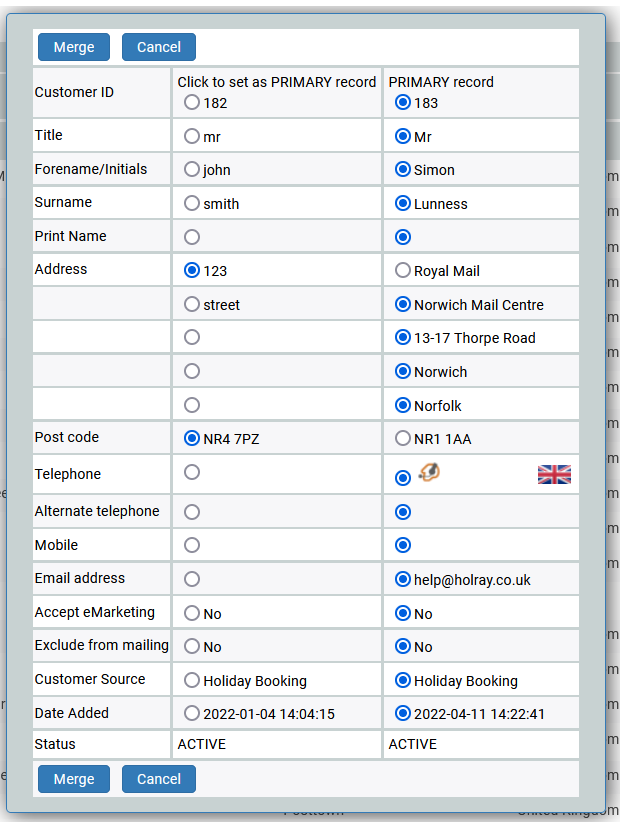
For those of a certain age, these work as the old push-button car radios. When you press one, the others in teh group are unset. They effectively operate as an either/or not both option.
The most prevalent use of these in the customer merge function where they are used to set which record a field value should be loaded from. It can only ever be one, never both.
Select boxes
These offer a choice of values from a list. They are either a single drop-down list,as below:-
Where only a single value can be chosed, or a Multi-line list where multiple values can be selected, as below:-
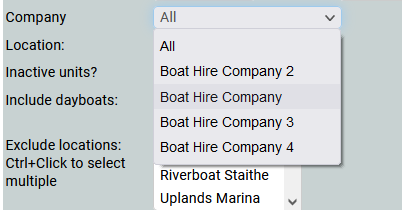
In multi-boxes, left clicking will select one value and unset all others (rather like the radio button).
Ctrl + Left Click will allow you to select/Unselect multiple individual values.
Shit + Left Click will allow you to select a top value, bottom value and automatically all values in-between.
Combo boxes
These are a comparatively new feature in HTML forms and are effectively a combination of a text box or a select box.
You can type in a value or click the box to see a drop-down list.
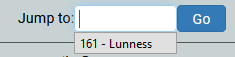
We use these on the booking page to allow you to jump to a booking or click to show the 10 most recent bookings.