This is an old revision of the document!
Table of Contents
Taking a Payment through the system using a credit or debit card.
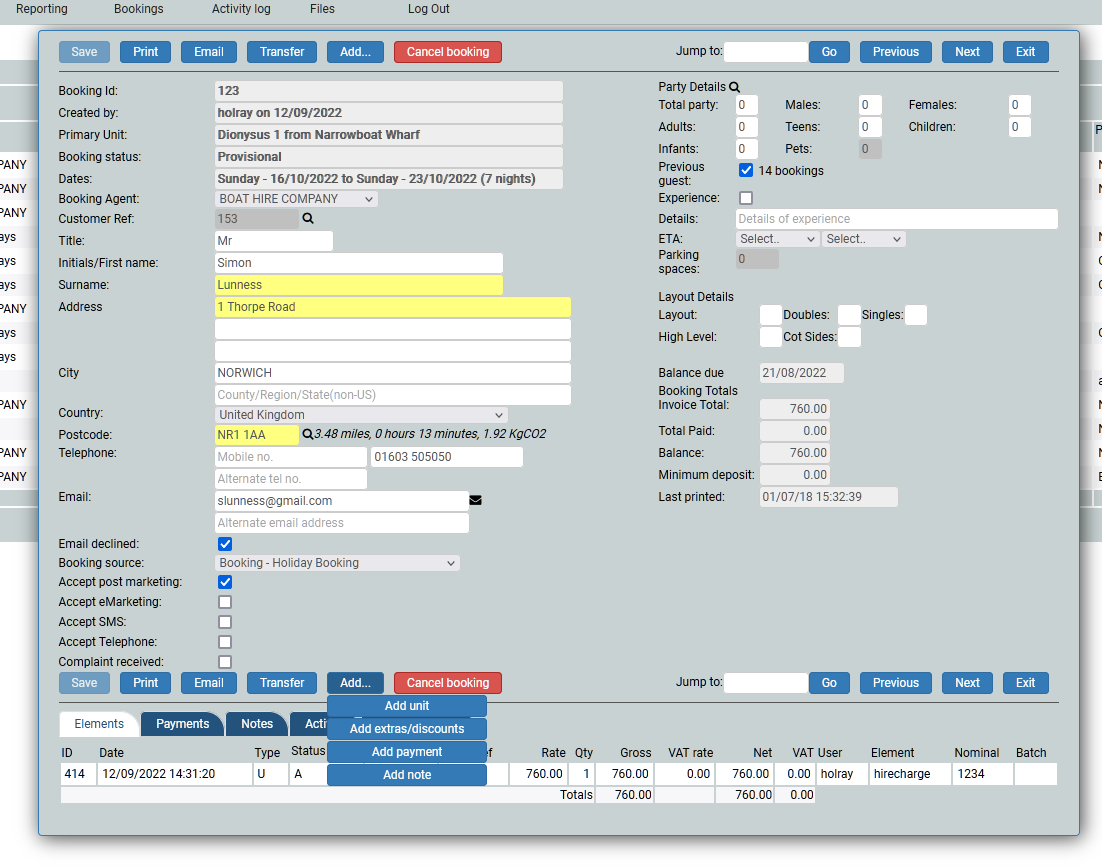
A booking will only be confirmed when a payment has been received against it. To take a payment you will need the customers card details (this will be a MOTO payment as it falls under the category of Mail Order Telephone Order and the customer, although on the telephone, is not present for the transaction) and click the Add button, and choose Payment.
The Add button
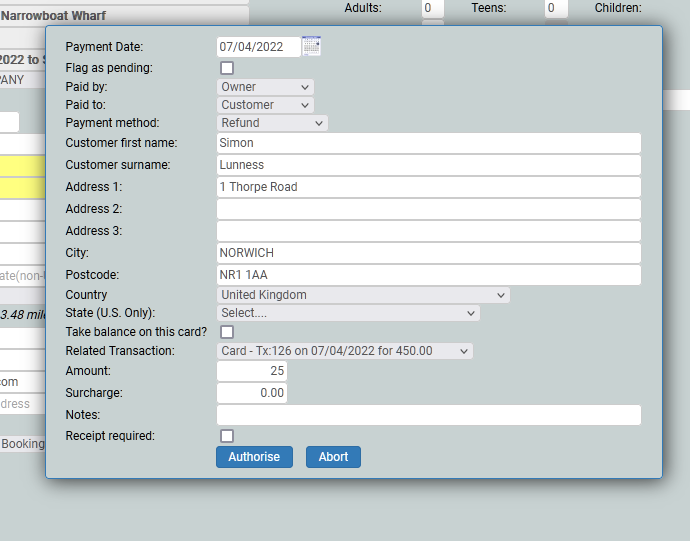
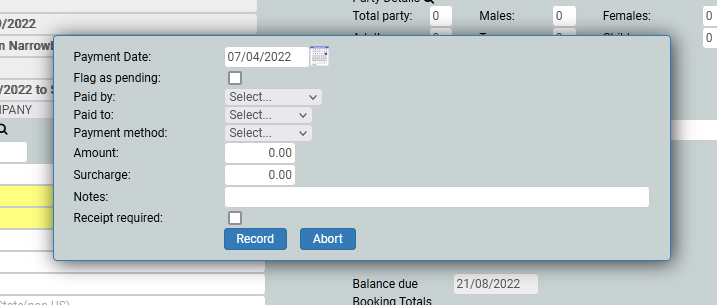
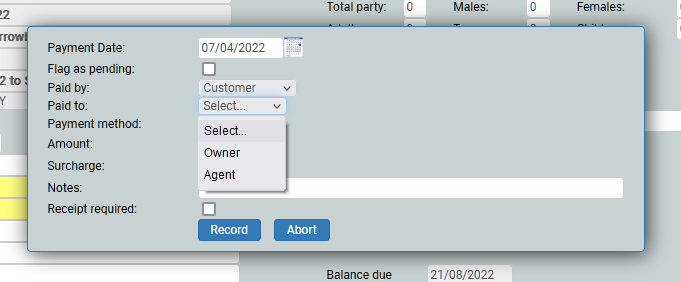
Once you have clicked the Add payment button, you will see a pop up window, which will ask you about the payment. The date will be today, by default. Paid by is where the monies are coming from, Paid to is where the monies are coming to, payment method will be chosen from the drop down, the amount will be how much you want to take from the card and notes is for when you need to remind yourself of something. If you want to send an email receipt, check the Receipt required button.
Completing a Payment
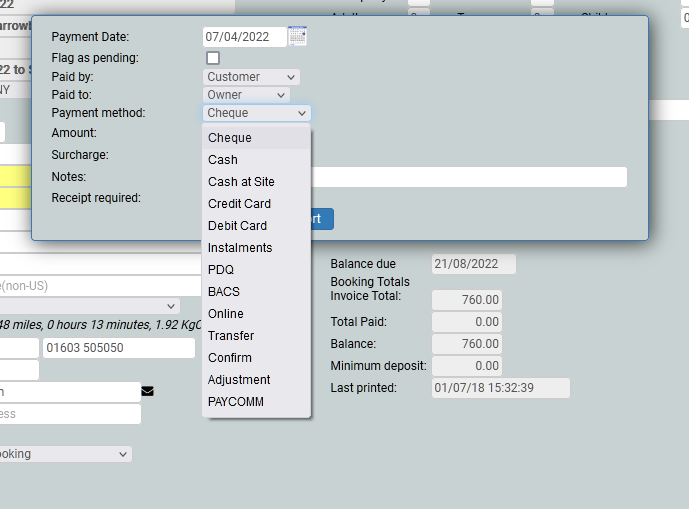
When you click the debit card/ credit card button, the window will expand to allow you to add the cardholder's details. You will see on our image that Simon is the card holder and wants to pay £450 towards his holiday. If you hover over the Receipt Required box, a message will prompt you to have a receipt, or not.
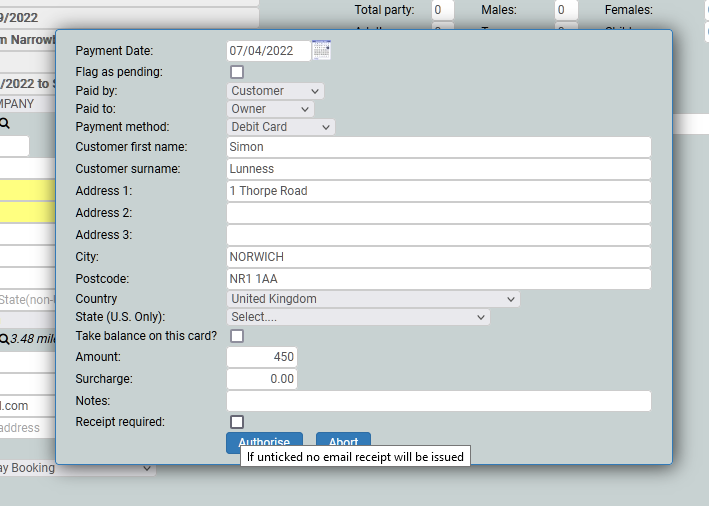
When all of the details are added, click to authorise - you will be taken to the Opayo gateway, to add the card details. Because Holray does not hold any card details, you is PCI Compliant.
Opayo (formerly Sagepay)
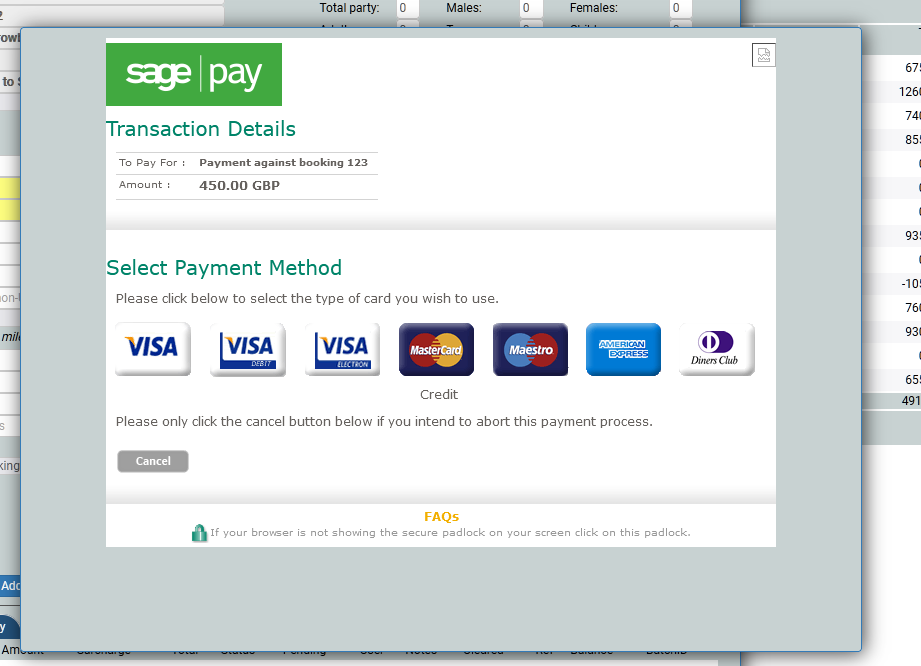
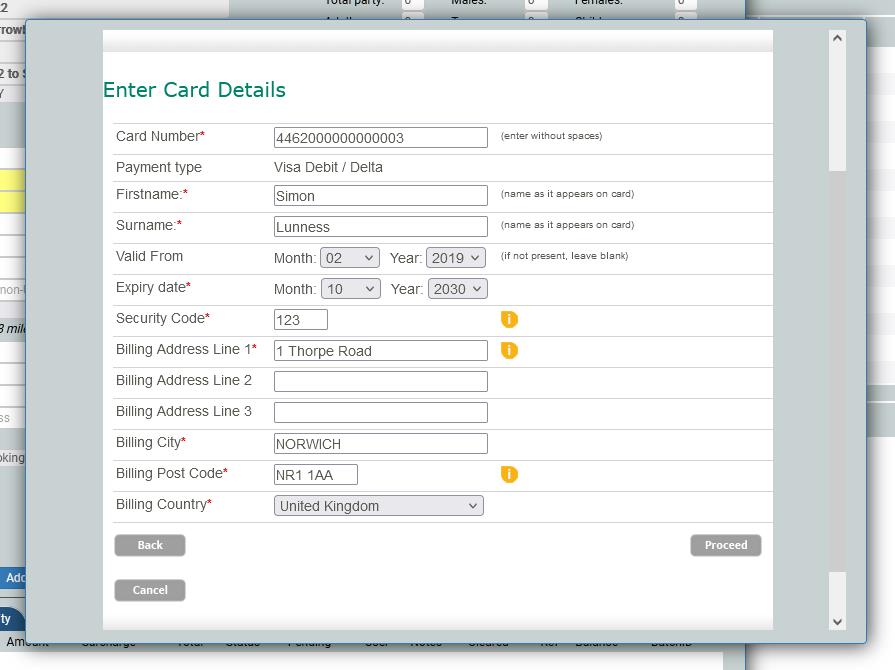
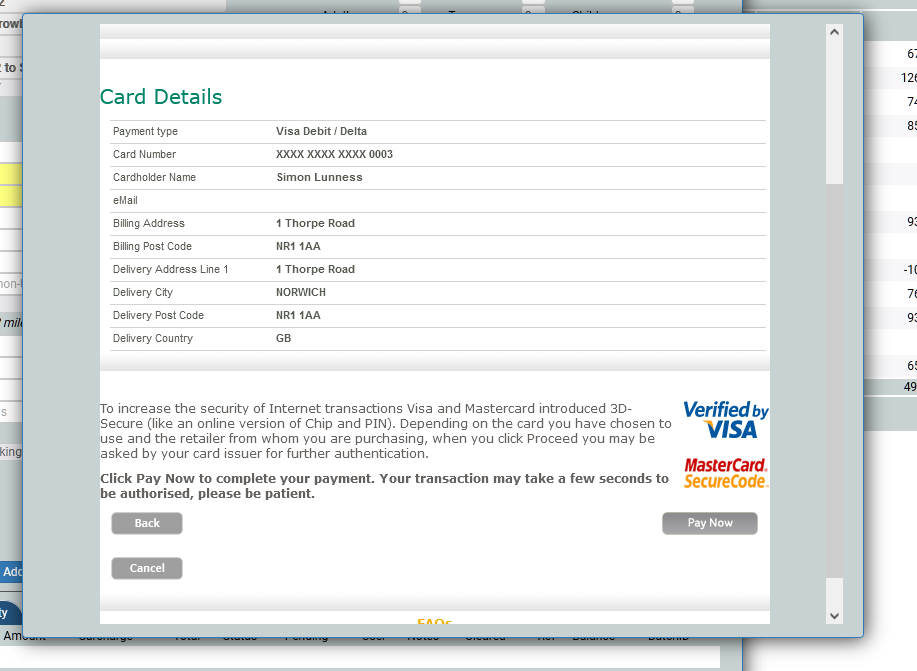
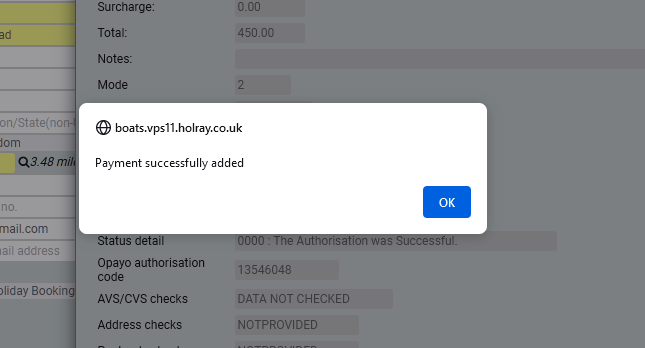
Click the Authorise button to authorise the payment. You will see a pop up to tell you that the payment has been successful. Sometimes it might not be, and if you are sure all of the details are correct, you may need to ask for another card.
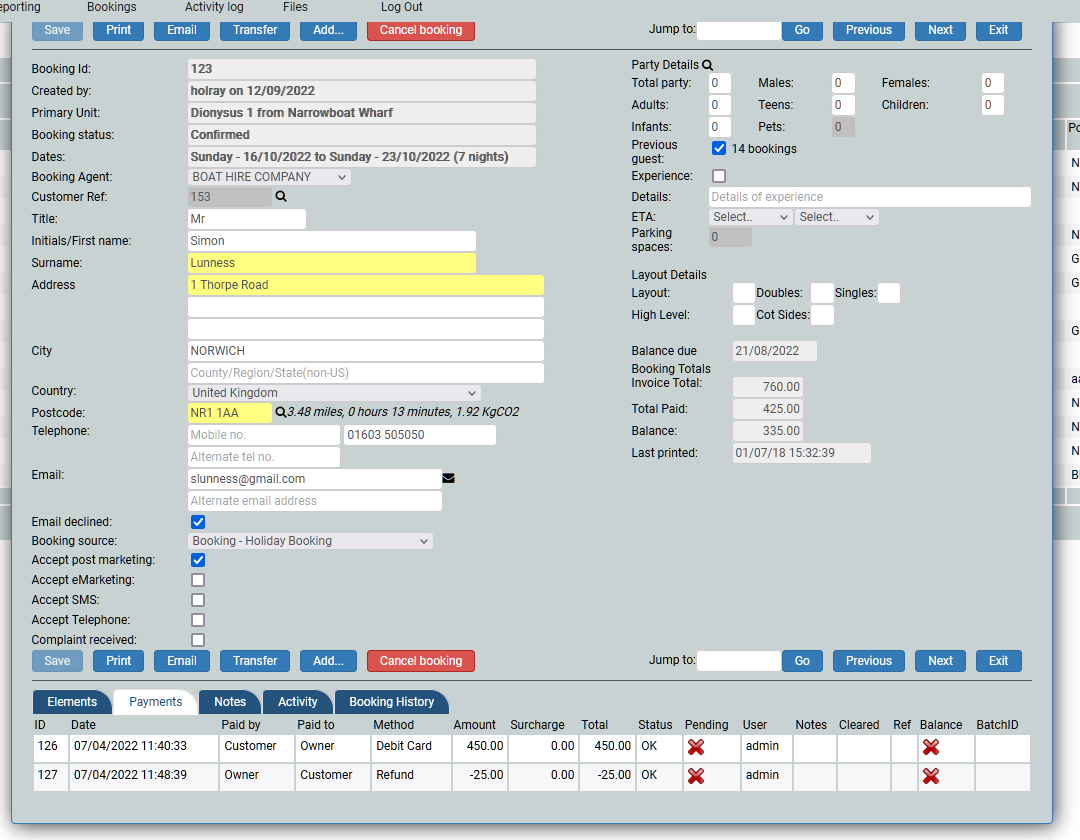
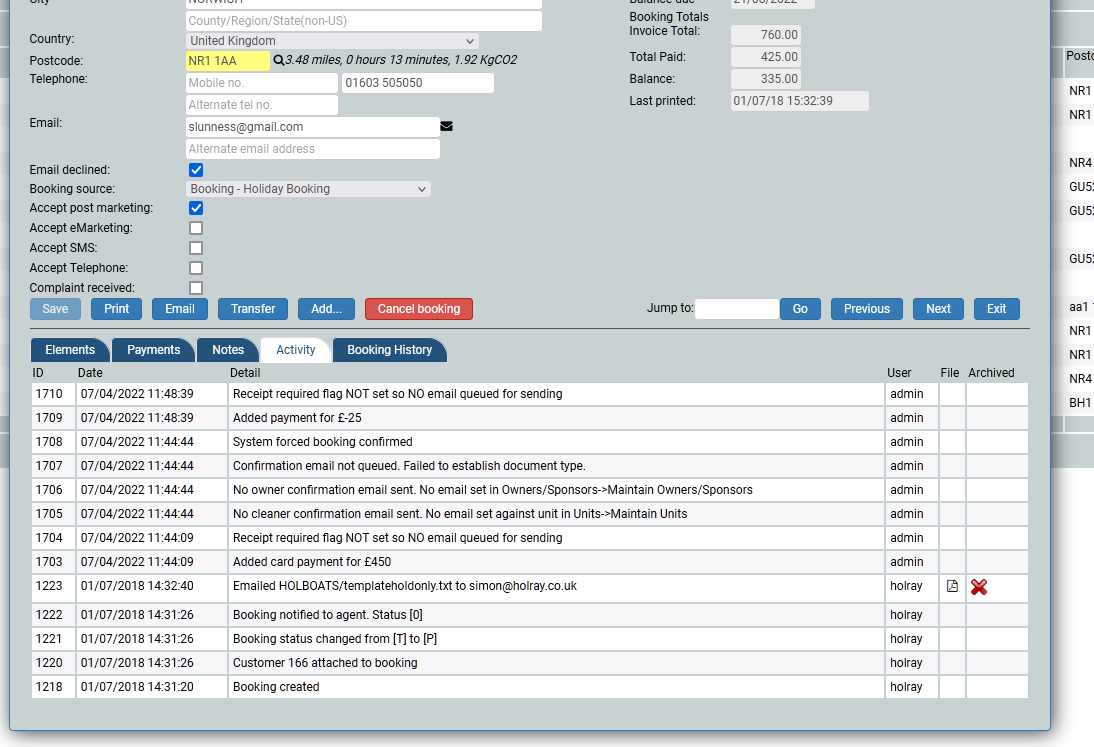
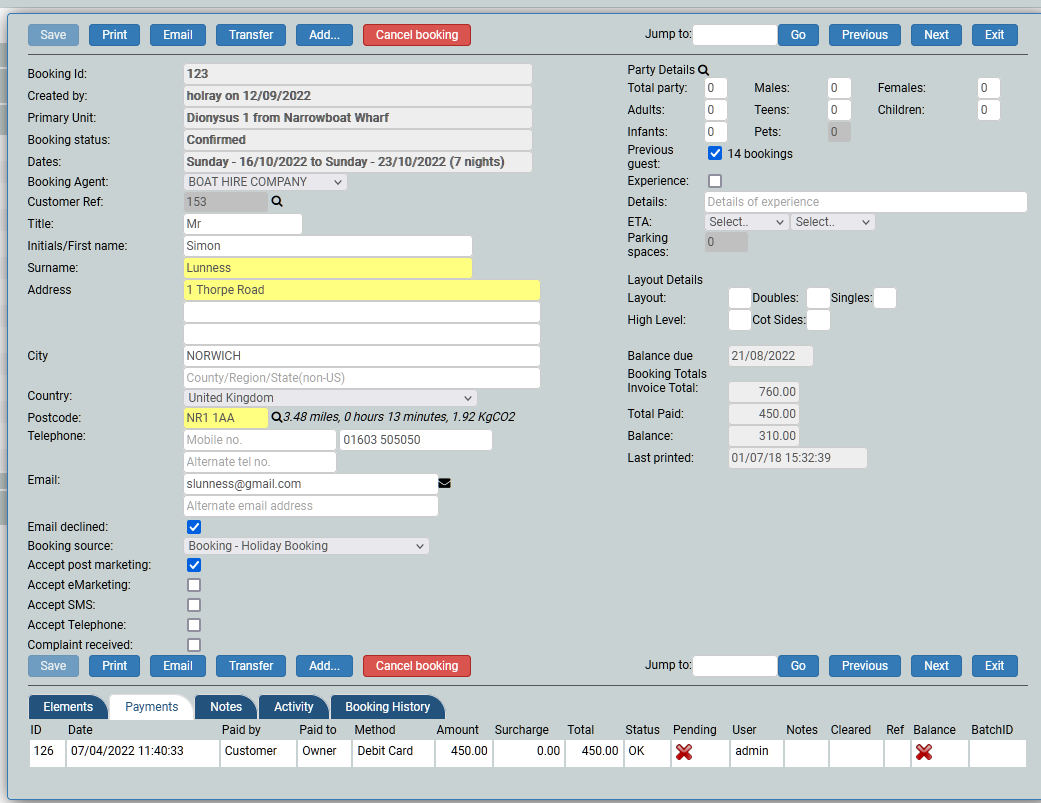
The booking showing the payment received
Move money
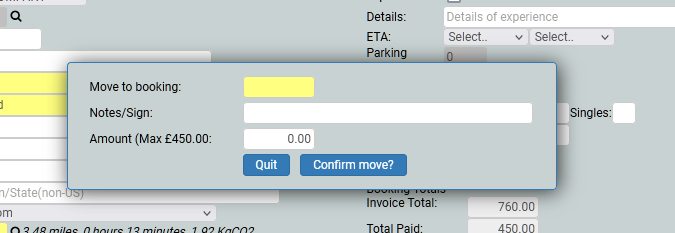
You may want to move the money to another booking, for example, a group of friends are booking several boats, and one person is paying for