
This is an old revision of the document!
Making a Booking
Lets assume someone wants to book onto Apollo for 7 nights starting on Tuesday 5th April 2022. As you can see, the duration drop down box is selected to 7 nights and we can see that Apollo is available on those dates.
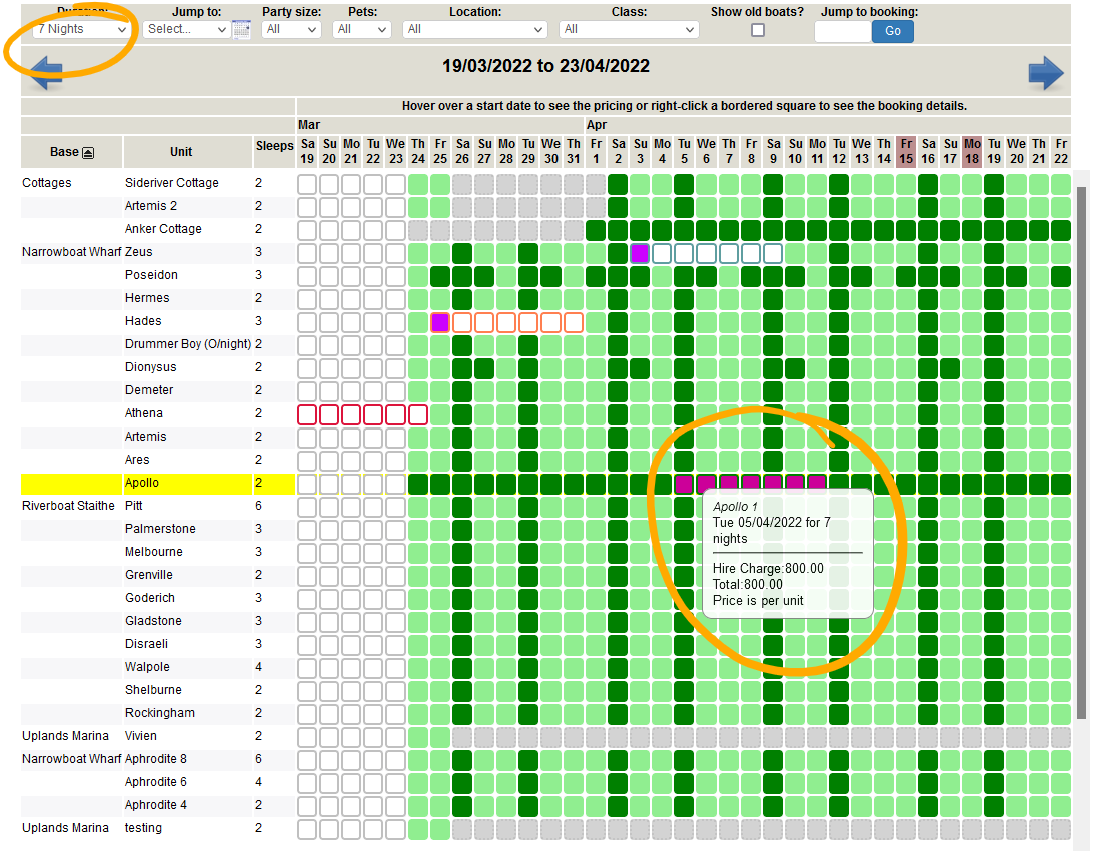
Clicking on the start date will bring this box up…
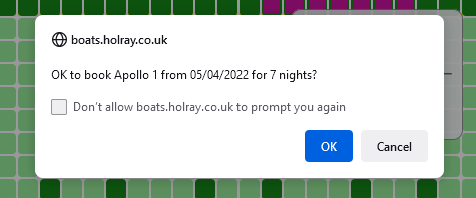
Click OK.
You will now see this page…
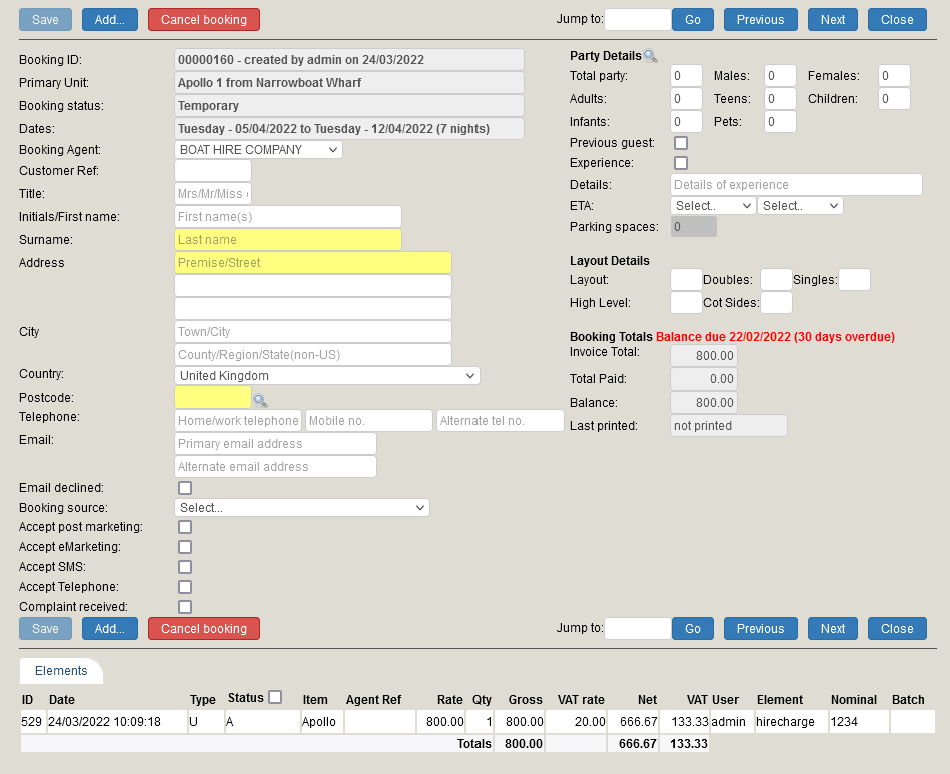
Here you can fill in the relevent information for the booking. You can see that the booking status currently states temporary whilst you complete the booking. No one else can book these dates unless you click cancel booking.
Once you have filled in all the information, click save.
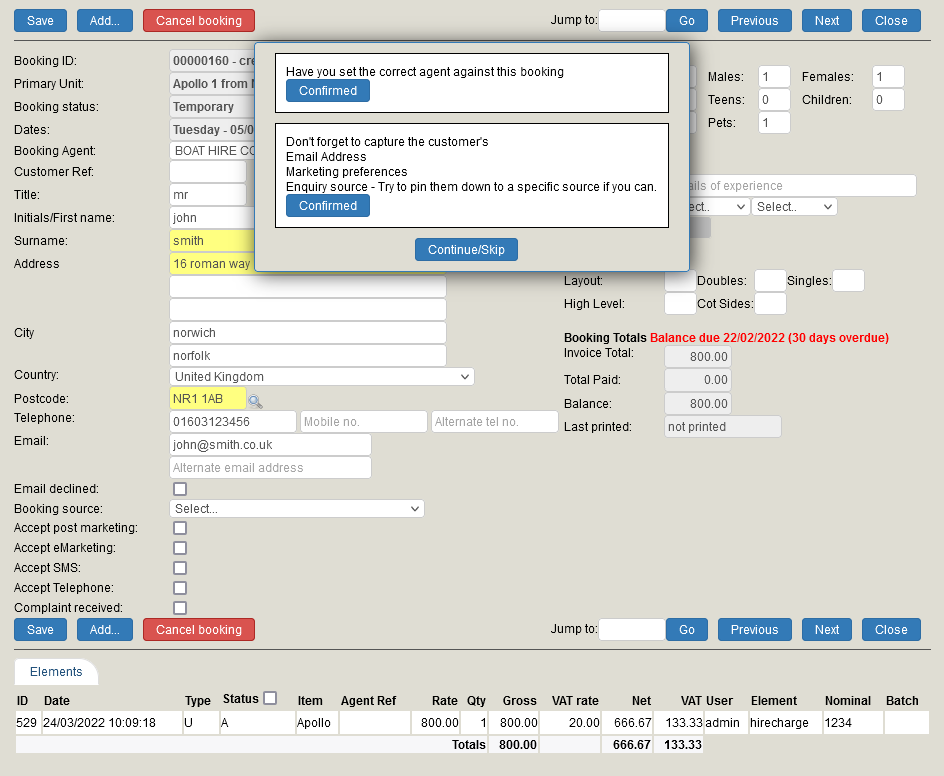
A handy little pop up box will appear just to make sure you have filled in certain aspects of the booking. You can choose to ignore this.
Once this is done, you will be able to see on the chart view that your booking has been reserved. If no payment has been taken, the booking will stay booked but as a provisional booking.
Sending correspondence
Once your booking has been created, you can send the customer an email / letter with some extra information on. Including important details such as payment requests.