
Table of Contents
Maintain Users
This is where you set up the user accounts for your system. Holray is a Super User. This means we have access to your system and the back end code for it.
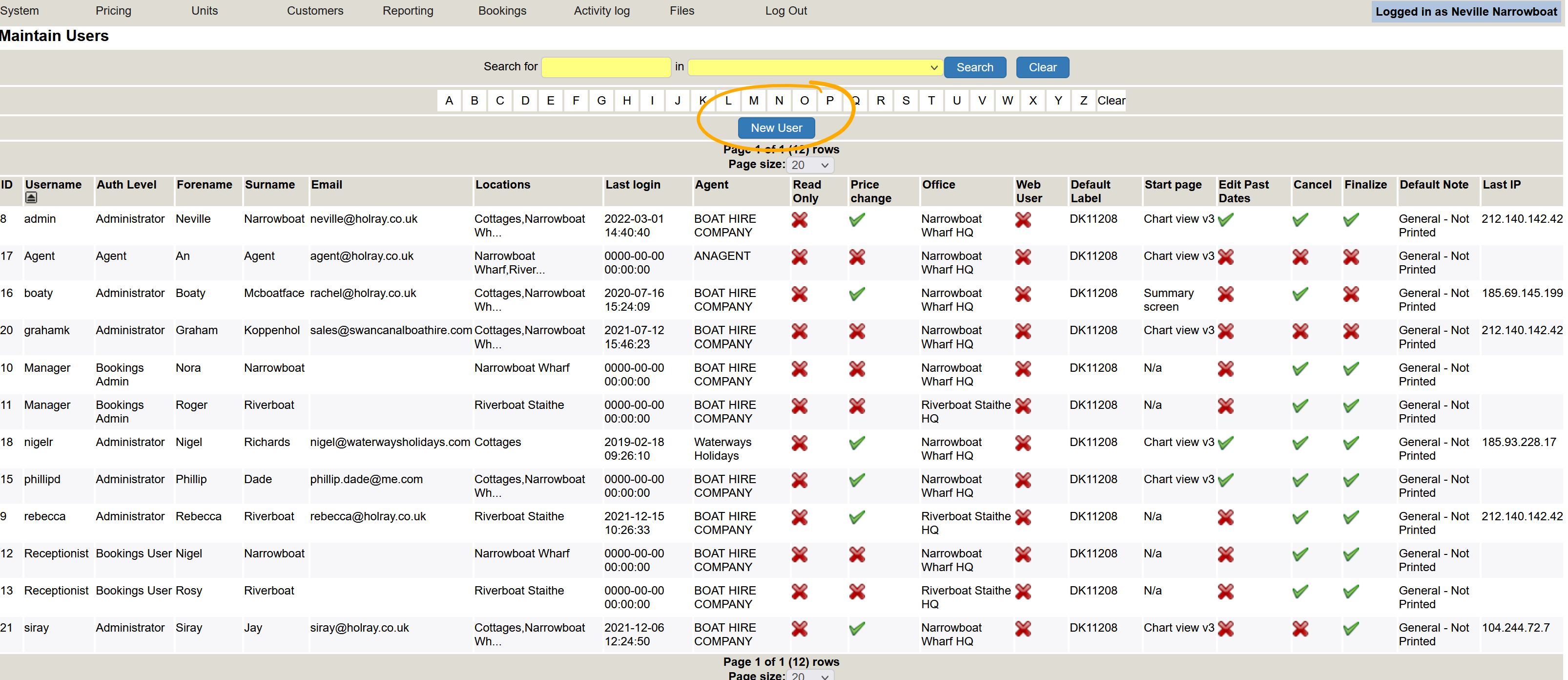
You can search for a user quickly using the search options at the top of the page (in yellow).You can also search using the alphabet buttons. See below:-

There are quite a few authority levels for your users, as you may want to have a more restricted access to the system for some users, i.e. your booking staff will need to see more details than your workshop staff. Always think about GDPR (General Date Protection Regulations) when setting authority levels as you only want to give necessary access.
Each and every user will need their own login and individual email address. Where you use a generic email address for your booking office (bookings@ for example) each user can use their own personal email address, for if and when they forget their logins. It is an extra security measure, and allows you to see who has done what.
Edit Exisiting User
To edit an existing user, click on their record and edit or delete.
Add New User
To add a new user, click the blue New User button.
A box will open and you can start to create your users.
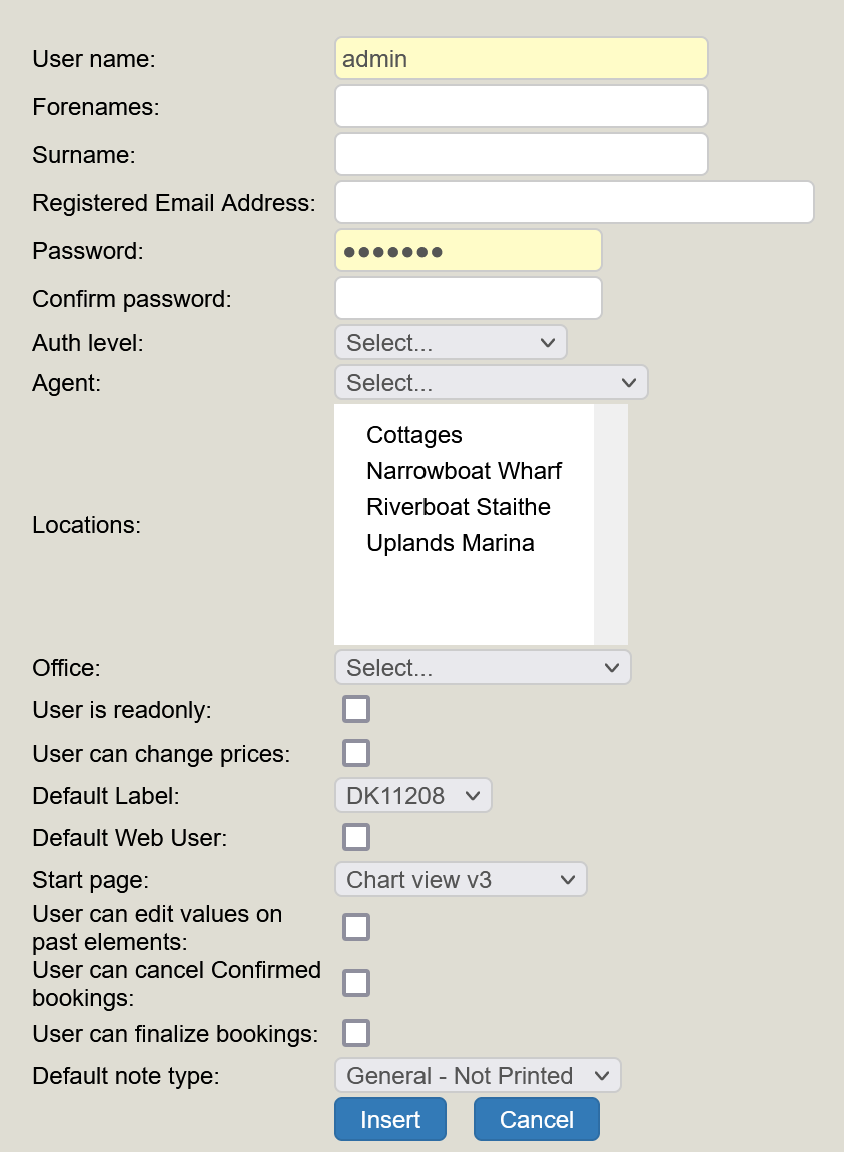
Details are case sensitive. You can only set a user to be the same level as you, or below. You cannot give a level above yourself (so do not change yourself from Administrator as once you change down, you cannot change back up!).
Auth Level = The highest level you can set is Administrator. Then it is Accounts user (they have access to accounts and can see pretty much the same as you), Bookings Admin, Bookings User and finally Agent.
When setting your users up, log in using their settings.This way, you can see what they do / don't have access to. If needs be, you can then alter their user setting accordingly
Agent = If the user is an agent, set which agent it is.
Locations = You can set users to have access to all locations, or just a selected few. Click and highlight all locations that apply.
Office = The office will be the head office base in most cases, as set under mainatin Offices.
There are a set number of additional options for your users, it depends entirely on what you would like them to be able to do, and their level of competance, experience and so on.
User is readonly = As it says on the tin. If this box is ticked the user will not be able to make any changes to the system.
User can change prices = Ticking this box enables the user to alter prices.
Default Label = This is for label printers.
Default Web User = Do not tick this unless setting up a web user
Start Page = The start page is the screen the system will open up first when logged into. In most case, we suggest the summary screen but some prefer the chart view.
Click insert.