
This is an old revision of the document!
Table of Contents
File Manager
Editing a file
Holray is set with templates for letters / emails that will be sent automatically on a web booking and by the operator when taking a manual booking. They are fully editable so can they can be personalised to suit your company.
Files → File Manager will bring you to a page which is prefilled with letter templates. All templates have to end with '.txt' so the system knows that they're letters. Although these templates look like a word document, they're not! They are HTML which is web coding. They will therefore work slightly differently to normal editing.
Clicking the little diamond to the left of the template will open a drop down with a few options.
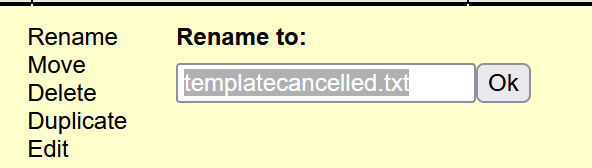
To make alterations to the template, click on Edit, you will be asked if you wish to edit the file. Click Yes, Edit File.
*If you are going to make any significant changes to your letter, I would advise clicking on Duplicate and saving a copy (just write the letter name with 'Copy' at the end). By doing this, you can work on the original document and if you get in a muddle or make a mistake, you will still have an untouched version of the document to refer to.*
Once you have clicked Yes, Edit File you will then get a reduce size window to edit. If you click the little toggle box (far right corner at the top of the document - looks like a screen) this will open into full screen. Click the toggle again to reduce the size back.
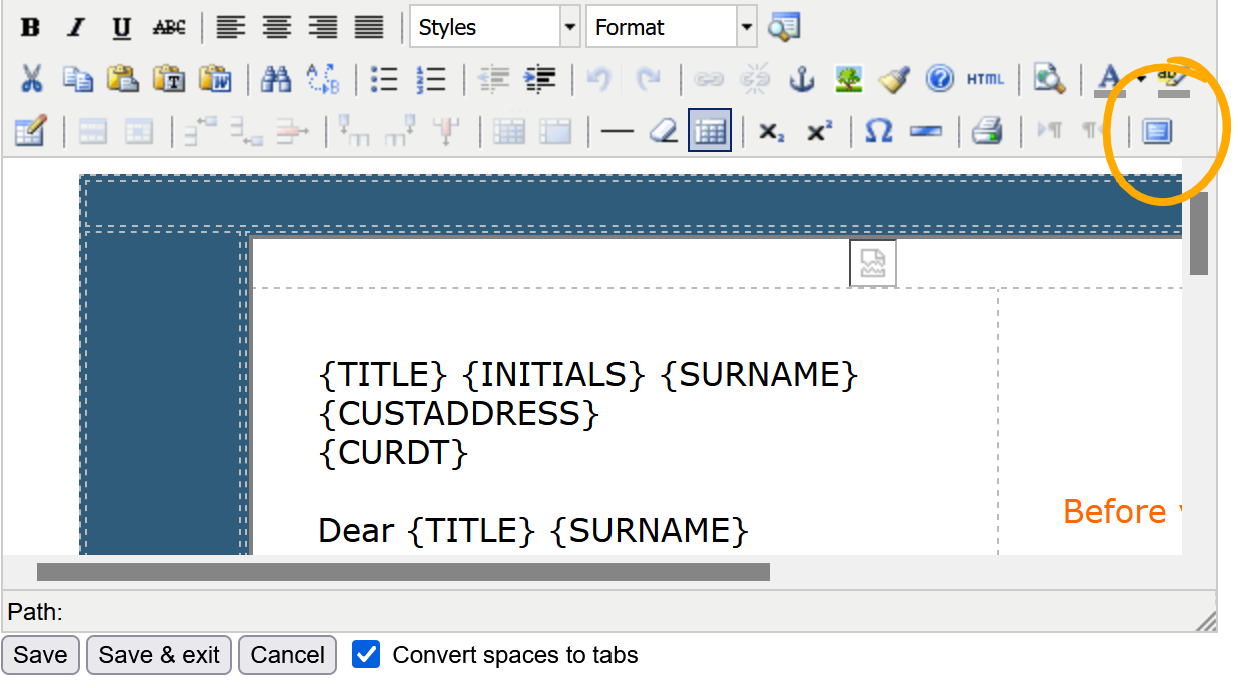
Now you can edit your document to your hearts content! Anything in a curly bracket '{ }' is a merge field. These are instructions to the system to prepopulate from the booking. Within the File Manager is a file called 'mergefields.txt'. If you have a look at this you will see all the merge fields available - there are quite a few so you should be able to find one that suits your needs.
It is also possible to create your own letters. Go to the box marked 'Create Folder' to the left of the template list. Click on the 'file' button and then type in the name of your letter. Remember to add .txt at the end
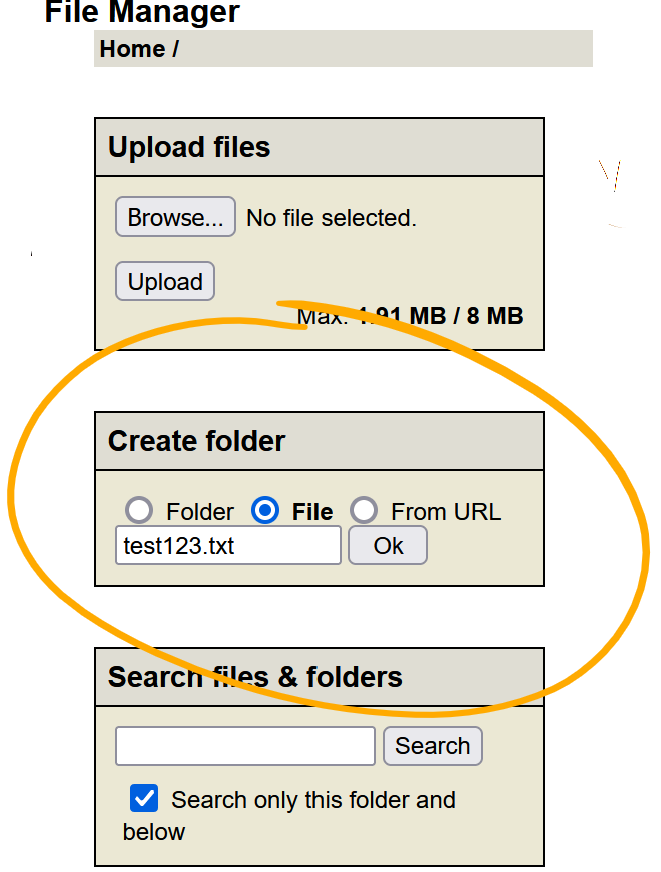
This new letter will then appear in your template list and can be edited the normal way.
Adding your Logo
You are able to add your company logo to your letters. All you need to know is where the logo is “stored” i.e. URL. Go to the letter you want to add the logo to, choose 'Edit' and then toggle the page to full screen (it helps to see what you're doing!) At the very top of the letter in the header space is a funny little icon. You need to click this and then click the image icon above (a little tree).
A pop up window will open and you will be able to add your image URL as well as a description and title. The image should then appear in the preview pane. Click update and it will appear in your letter.

Once you have created your letters, you can now set which ones are to be used in which circumstance. Please refer to the Document Manager section for guidance on how to do this.