This is an old revision of the document!
Table of Contents
Document Manager
Overview
The document manager is accessed via Files → Document Manager. It enables you to control which documents and web URLs Holray sends or redirects customers to dependent upon the status of their booking.
The document manager allows different documents or redirection URLs for each location (either physical or logical) that you operate. E.g. You may operate from two physically different geographic bases and so your confirmation emails need to reflect the requirement of each base. Or you may have split your single location operation into day boats, cottages and weekly boats with differing email requirements for each.
You can of course, simply set the Document Manager for 'All Bases' and all your locations will use the same rules.
Getting Started
When you first open the document manager you will only see a drop-down waiting for you to select a base. As below:-

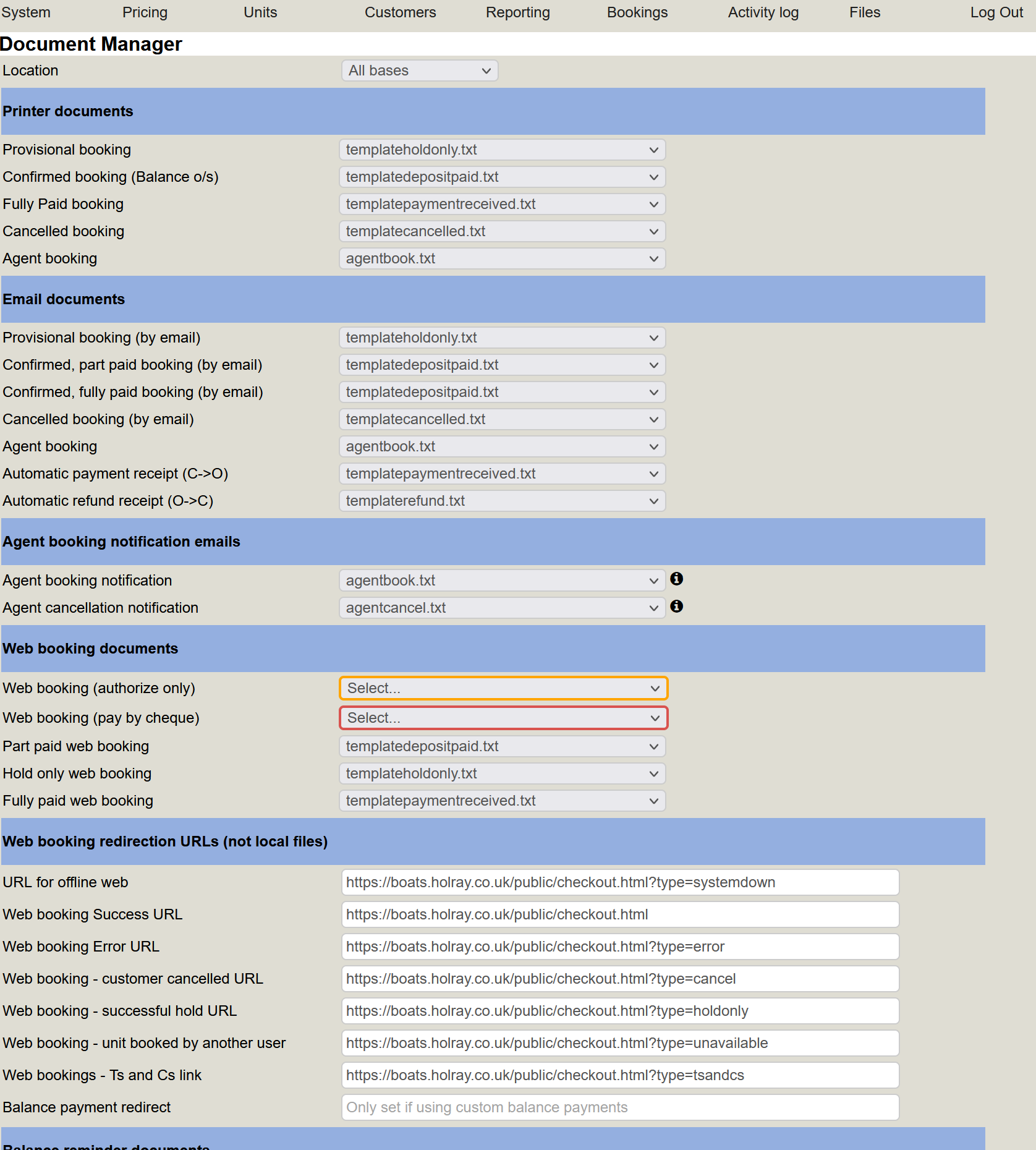
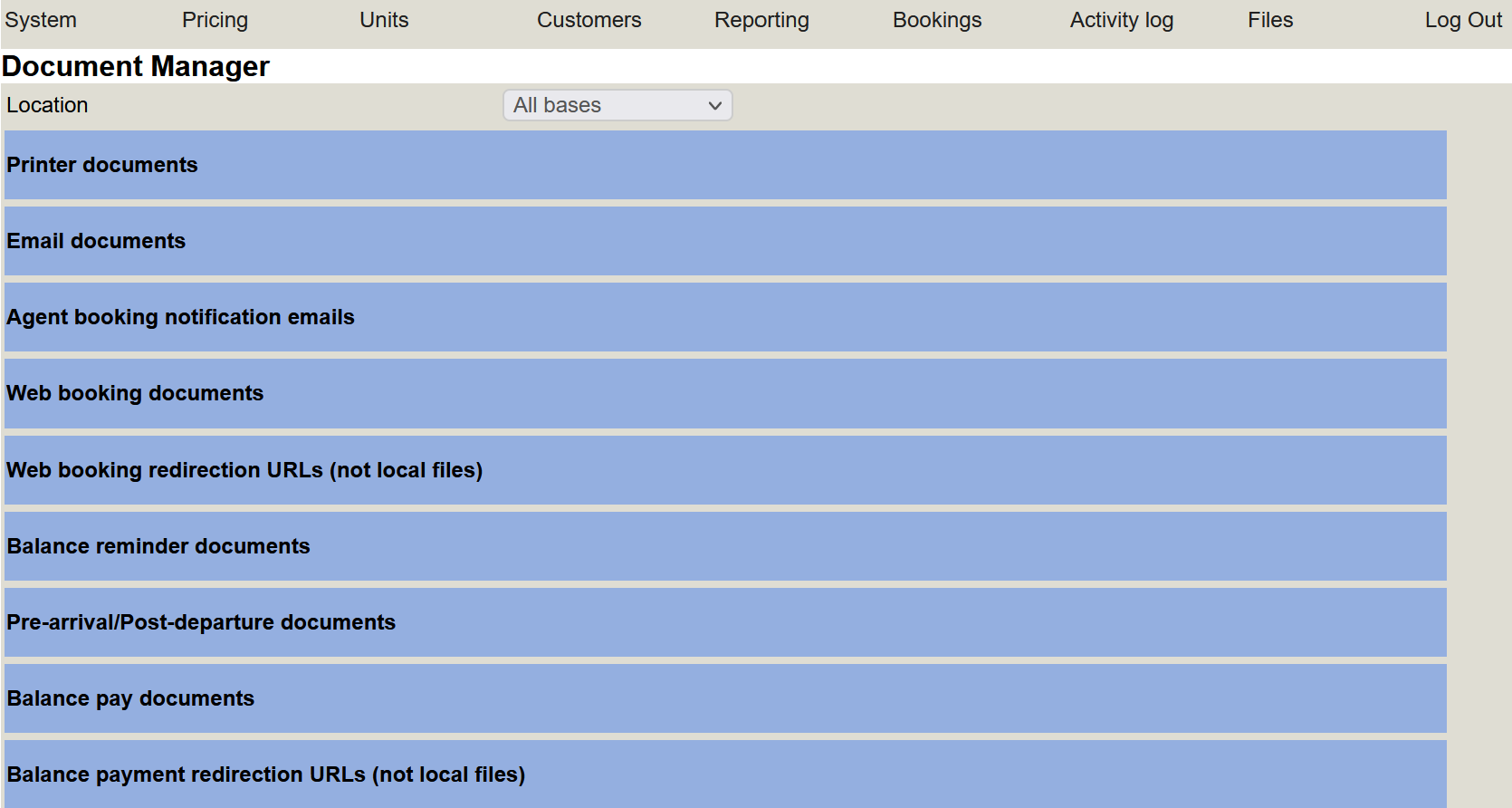
In this example we will select 'All Bases' which will bring you to page showing the different document sections. Each section has a blue header bar.
If you click anywhere on the blue bar, it will minimise that section. Clicking it again will expand it.
Each of the sections controls the default documents that Holray will use. The first two sections 'Printer Documents' and 'Email Documents' control what is offered as the default template when printing or emailing from the main booking screen.
Printer documents
The printer documents are as below:-

For each status of booking we set the document we wish the system to use as the default.
Provisional booking = a booking with a customer but NO money received.
Confirmed booking (Balance o/s) = A booking with a customer and SOME but NOT ALL of the balance paid.
Fully Paid booking = A confirmed and FULLY PAID booking.
Email documents
These are basically the same as the Printer documents. They apply when sending emails directly to the customer from the main booking screen.
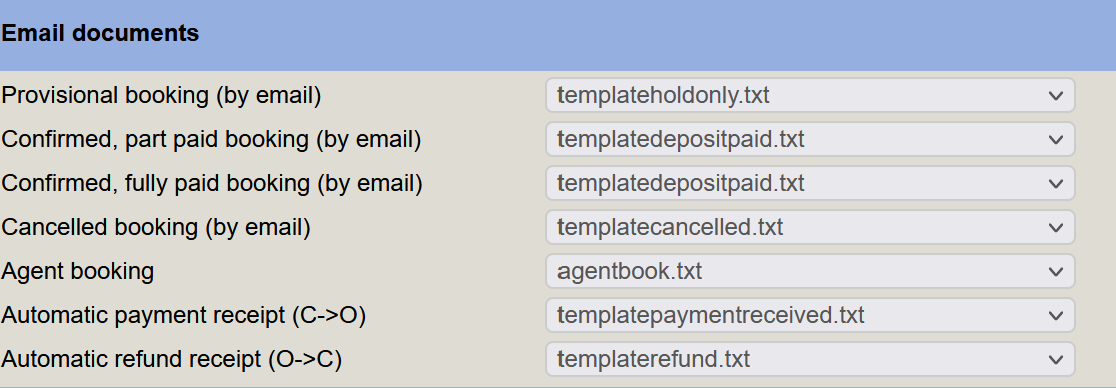
There are 2 additional options here.
Automatic payment receipt (C→O) = automatic receipt, via email to the customer on receipt of payment.
Automatic refund receipt (O→C) = automatic refund receipt, via email from owner to customer.
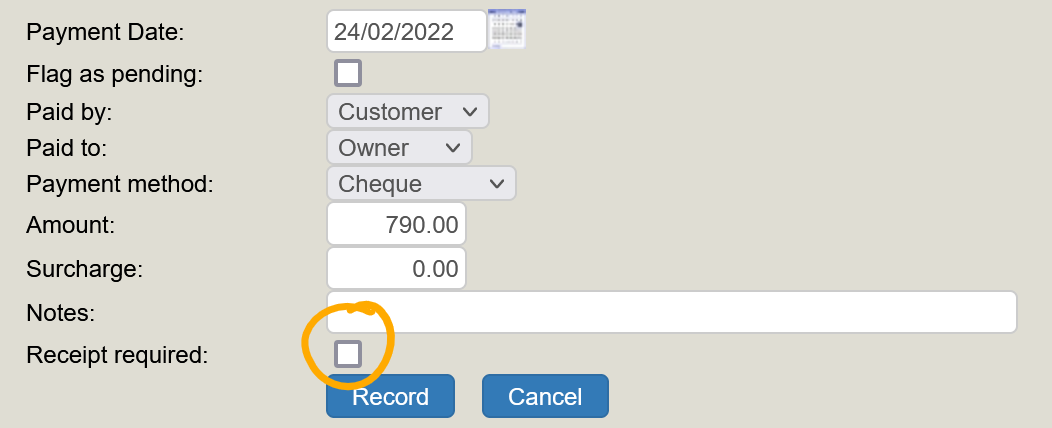
If they're not set, none will be sent. You also get the opportunity to prevent the receipt being sent by not ticking the 'Receipt Required' box on the payment window on the booking screen. See below for an example:-