
Table of Contents
Document Manager
The document manager is accessed via Files → Document Manager. It enables you to control which documents and web URLs Holray sends or redirects customers to dependent upon the status of their booking.
The document manager allows different documents or redirection URLs for each location (either physical or logical) that you operate. E.g. You may operate from two physically different geographic bases and so your confirmation emails need to reflect the requirement of each base. Or you may have split your single location operation into day boats, cottages and weekly boats with differing email requirements for each.
You can of course, simply set the Document Manager for 'All Bases' and all your locations will use the same rules.
Getting Started
When you first open the document manager you will only see a drop-down waiting for you to select a base. As below:-

In this example we will select 'All Bases' which will bring you to page showing the different document sections. Each section has a blue header bar.
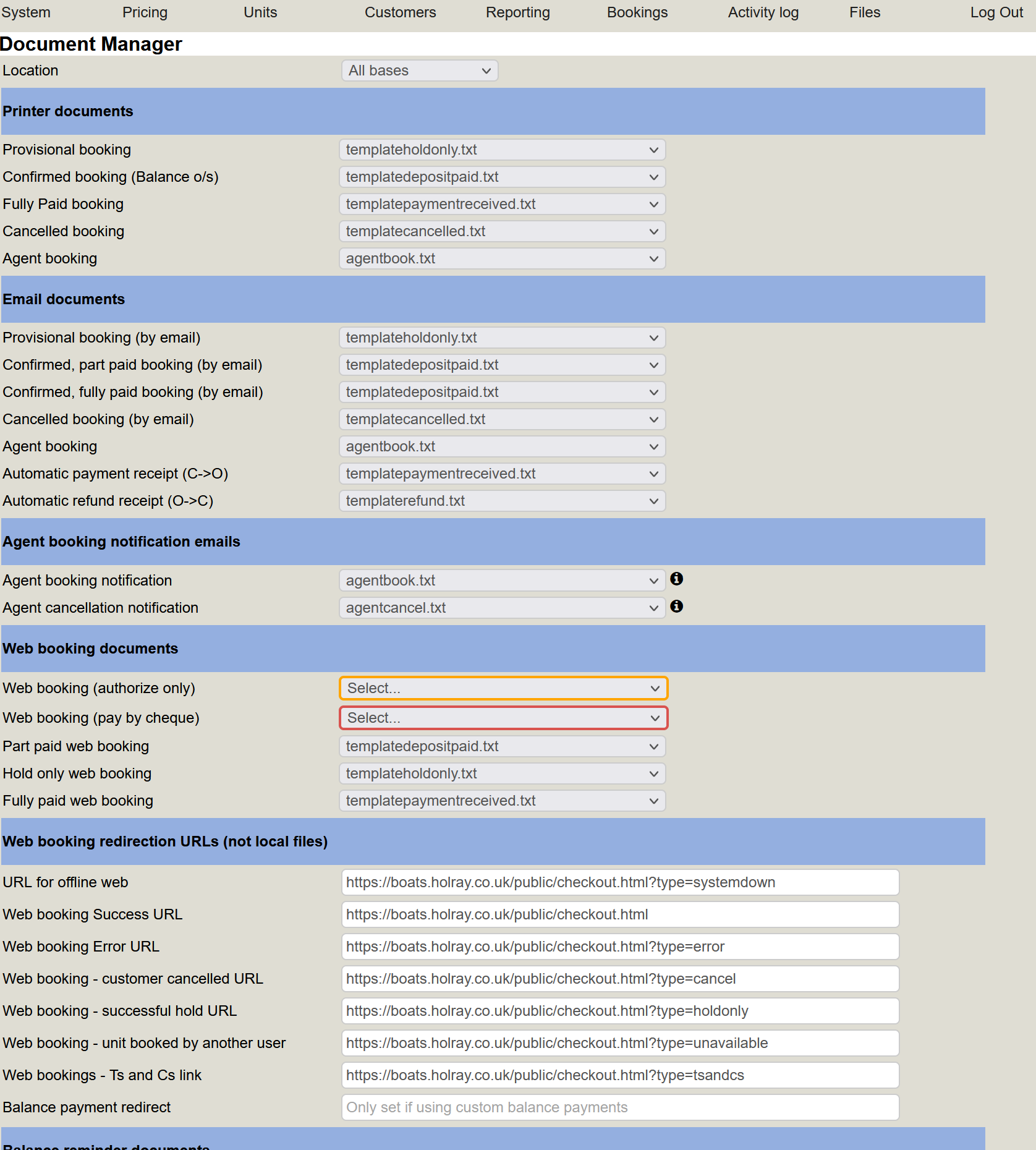
If you click anywhere on the blue bar, it will minimise that section. Clicking it again will expand it.
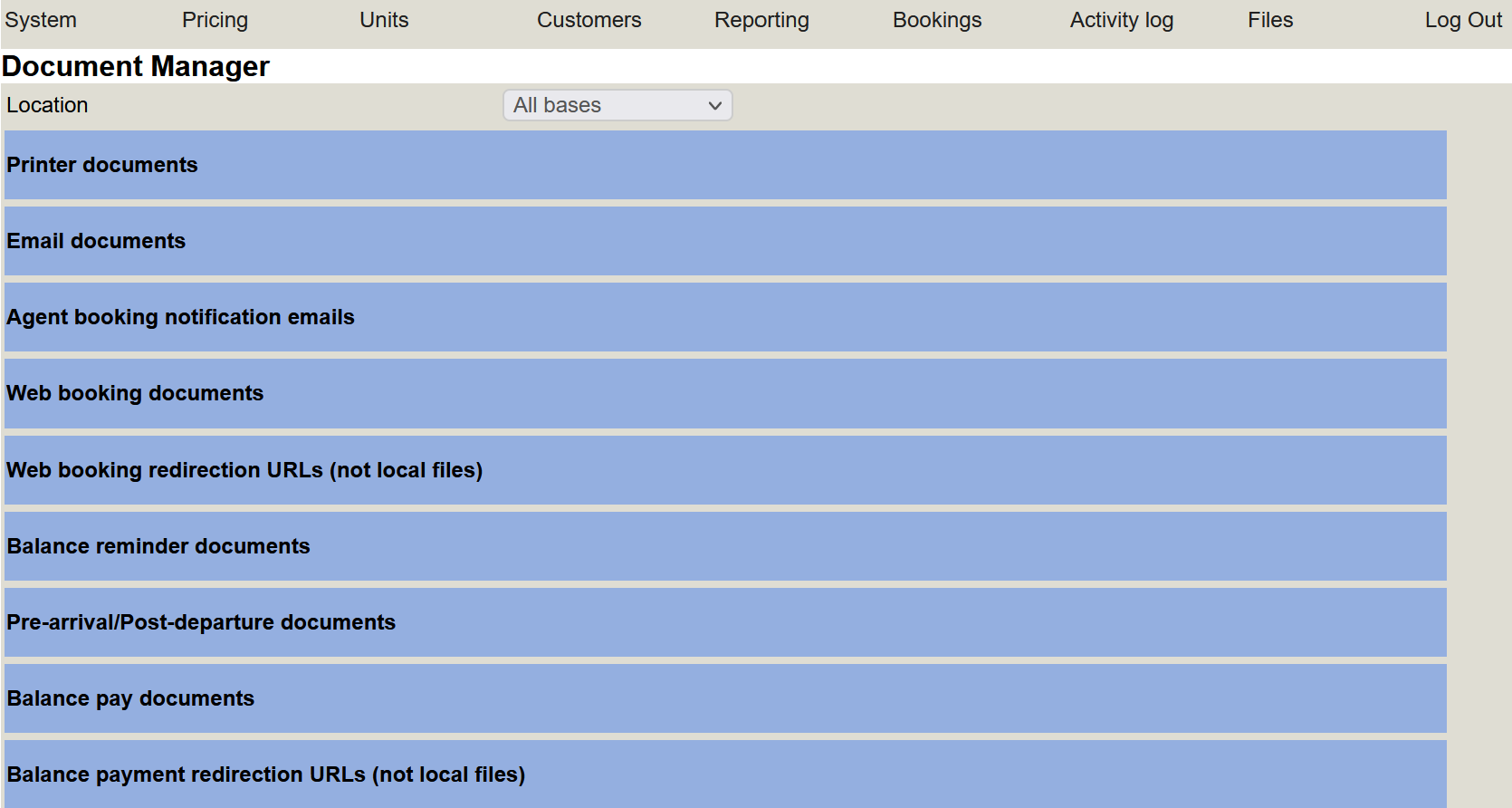
Each of the sections controls the default documents that Holray will use. The first two sections 'Printer Documents' and 'Email Documents' control what is offered as the default template when printing or emailing from the main booking screen.
Printer documents
The printer documents are as below:-

For each status of booking we set the document we wish the system to use as the default.
Provisional booking = a booking with a customer but NO money received.
Confirmed booking (Balance o/s) = A booking with a customer and SOME but NOT ALL of the balance paid.
Fully Paid booking = A confirmed and FULLY PAID booking.
Email documents
These are basically the same as the Printer documents. They apply when sending emails directly to the customer from the main booking screen.
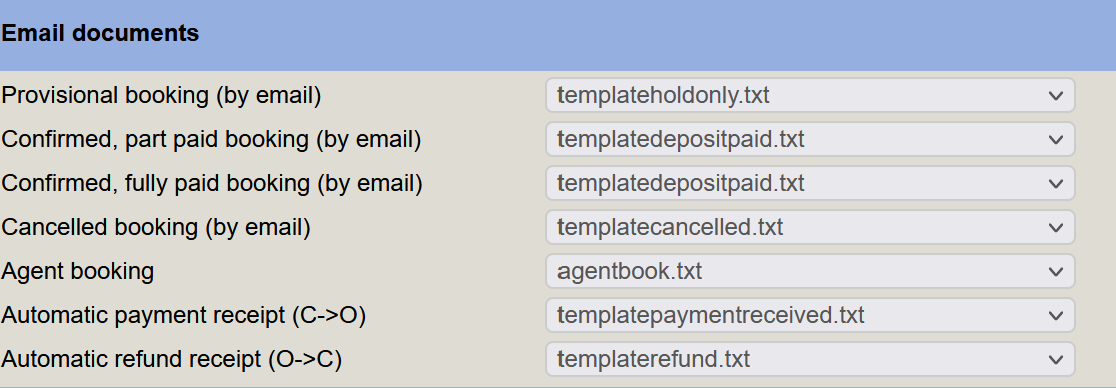
There are 2 additional options here.
Automatic payment receipt (C→O) = automatic receipt, via email to the customer on receipt of payment.
Automatic refund receipt (O→C) = automatic refund receipt, via email from owner to customer.
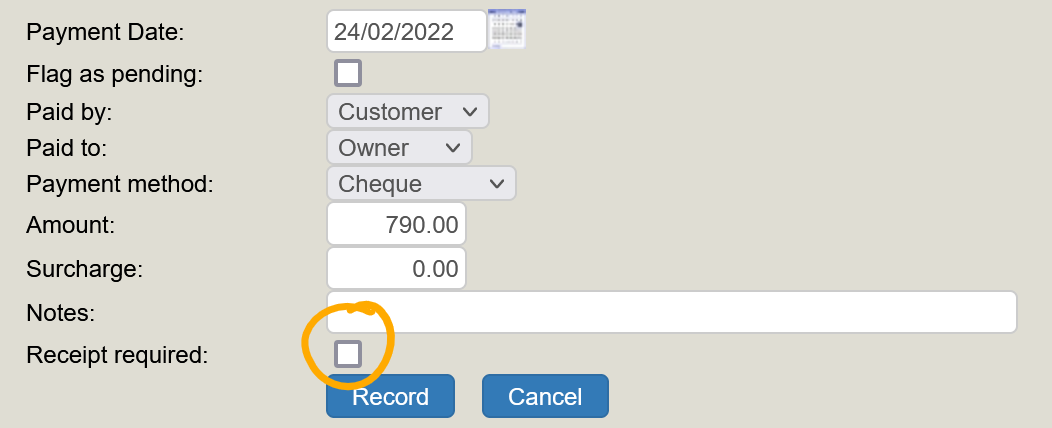
If they're not set, none will be sent. You also get the opportunity to prevent the receipt being sent by not ticking the 'Receipt Required' box on the payment window on the booking screen. See below for an example:-
Agent booking notification emails
If a customer makes a booking through one of your agents (E.g. Waterways) then you can set yourself up to receive a notification. You will receive these via email.

Web booking documents & Redirection URLs
The next two sections are used by the web checkout process and are critical to the operation of the system.
The web booking documents if not set, or set incorrectly will result in customers booking online either receiving a “Your operator's email template does not exist” message instead of a confirmation email, or in the case of a missing or incorrect URL the booking will fail - particularly with SagePay card payments.
Always check these sections and the balance payment documents and balance payment redirection URLs to ensure they are correct.
Web booking documents
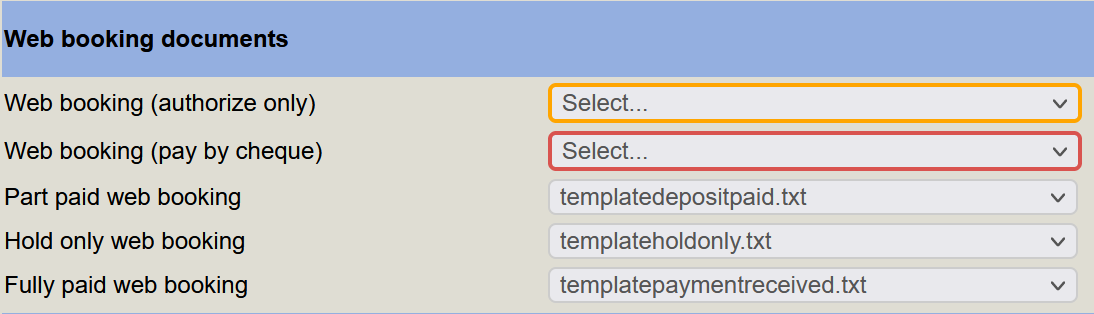
In the example above, we don't “authorise” or “pay by cheque” so we don't set them. We do take card payments, and we do accept a “hold only” web booking where we reserve the unit without any payment. Therefore we set each template accordingly.
Redirection URLS
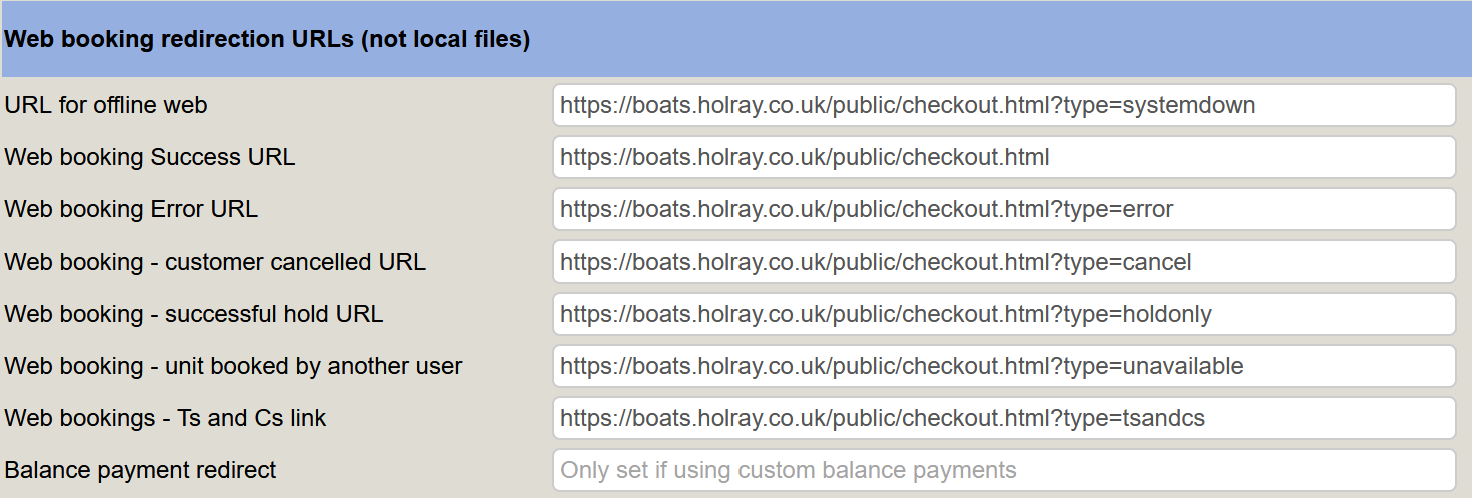
This time, we're not setting document templates but telling the system where to send the customer after they've completed their booking via the web. We want the customer to end up back on your website at a page that reflects the outcome of their booking.
The Key URLs are:-
Success = Booking was successful
A typical success page would look something like this :-
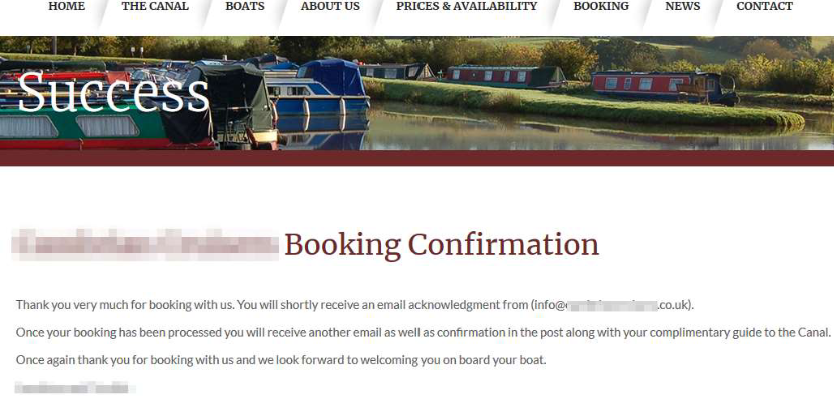
Error = Something went wrong
Which could look like this:-
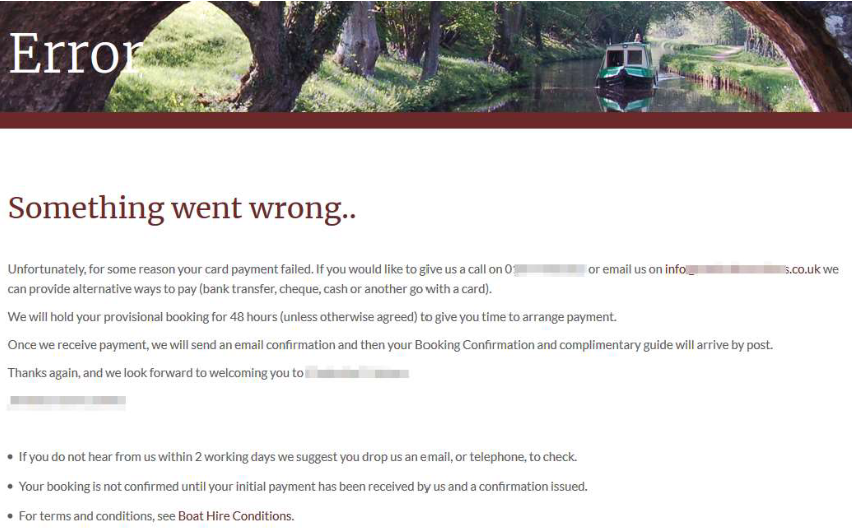
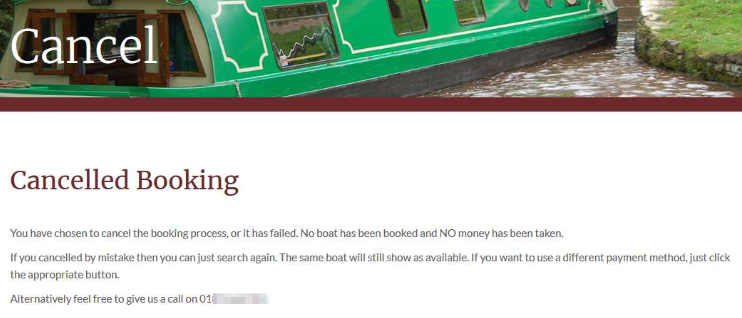
Cancelled = Customer abandoned
Typically only for card payments and would look something along the lines like this :-
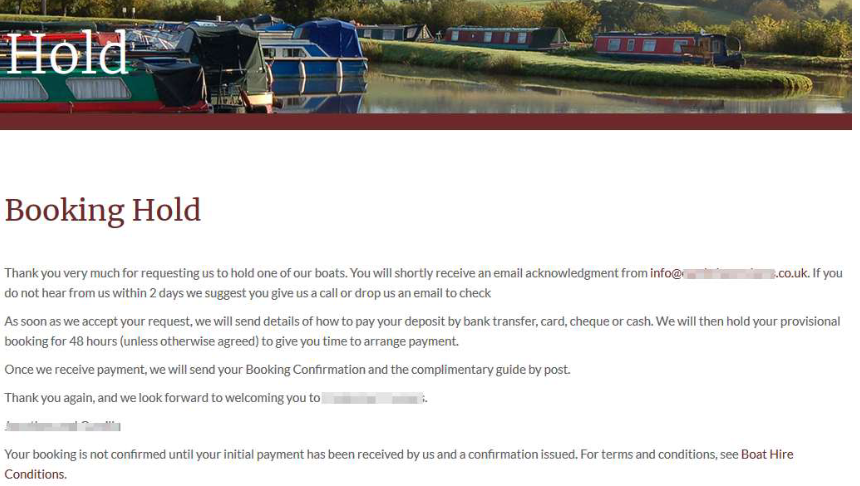
Hold = Booking held, no payment required
A 'Hold' page would be a variant of the 'success' page but would need to be clear the booking for was provisional. The customer should contact the owner to arrange payment at the earliest opportunity. See below for an example:-
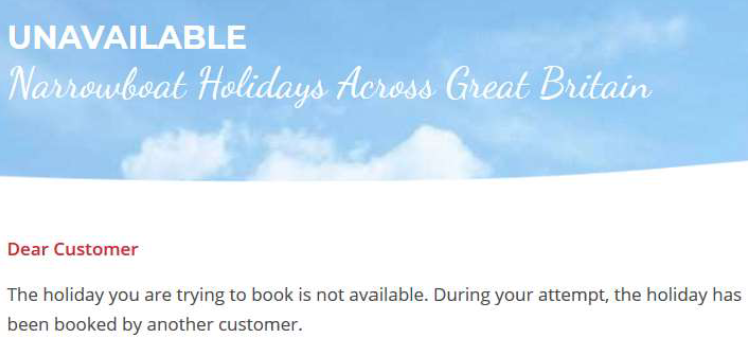
Unavailable = Unit booked by another customer
It is possible that whilst customer A is booking their holiday, customer B is also booking their holiday and completes the booking first. Meaning that by the time customer A clicks to pay or confirm, the unit they are trying to book is no longer available. This is rare but can happen. See below for an example :-
Web Bookings - T's and C's link
The system won't complete a web booking until the customer has agreed to your terms and conditions. So you need to provide a URL either to your terms and conditions on your website or to a PDF doc on your website.
URL for Offline Web
If we've disabled the web interface for maintenance, this is a simple holding page asking the customer to try again later. As we average 99.9% uptime, this doesn't happen often. Most sites leave the default 'systemdown.html' which is hosted by us.
Balance Payment Redirect
This is likely to be removed in the future and can safely be ignored unless Holray have told you otherwise!
Balance Reminder Documents
This section allows you to set documents to be sent automatically by the system in order to issue balance payment reminders to customers.
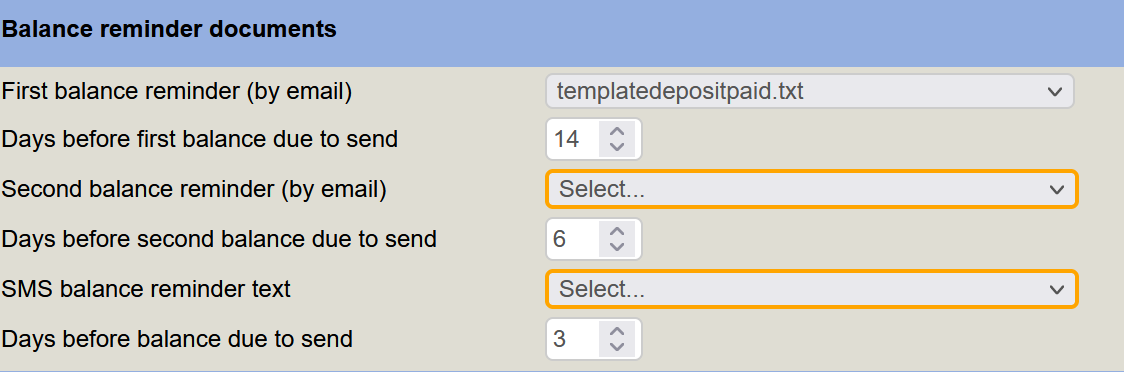
Here you can arrange for the relevant reminder documents to be sent to your customer to remind them that the balance is due. As you can see in the above image, the first balance reminder email goes out 14 days before it is due, 7 days later a second balance reminder goes out via email. You could also then select a text to be issued to the customer 3 days beforehand as well if nothing has been paid so far. Please note, SMS balance reminder texts require an SMS gateway account - talk to Holray if you wish to do this
If no document is set - none will be sent.
Don't forget to include a balance payment {LINKURL} in your balance payment documents if you accept card payments.
Pre-Arrival / Post- Departure Documents
This section operates in a similar way to the balance reminders, but allows you to send out pre-arrival documents (e.g. Directions, what to bring etc) and post-departure (e.g. Thanks for holidaying with us, discount on future bookings, link to review site etc)
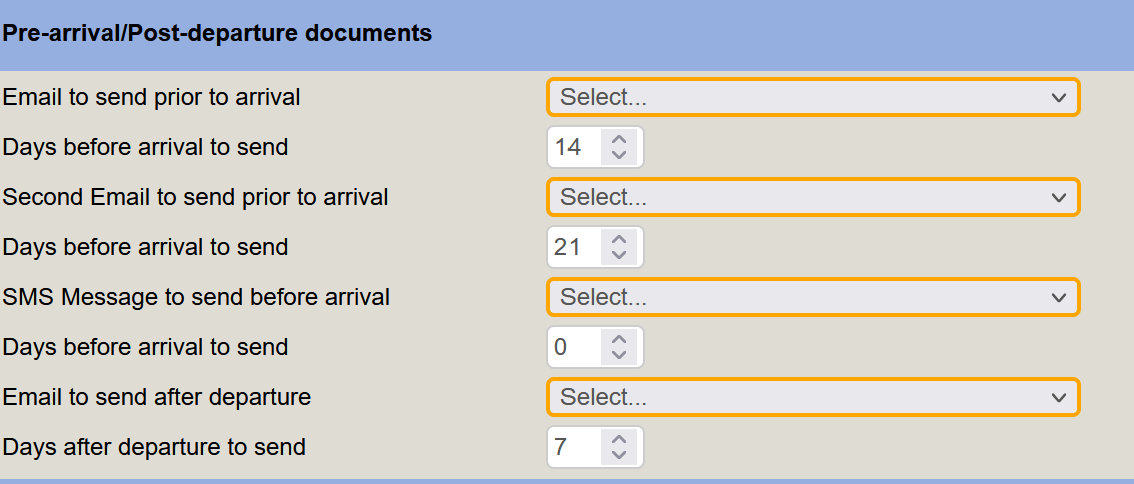
NOTE: If you tick the 'Complaint received' box (on the customer booking) then they will NOT be sent a post departure document for obvious reasons.
Balance reminders and pre-arrival / post-departure documents are not sent directly but are added to a mail queue and sent periodically between 8am and 6pm.
You can view the queue via Customers → View Mail Queue.
Automatic emails are not enabled by default - contact Holray if you would like this enabled.
Balance Pay Documents
These operate in the same way as the web booking documents and control which emails Holray sends on a successful part or full balance payment

Like the web booking documents, if they're not set or are set incorrectly you may experience problems taking balance payments.
Balance Payment Redirection URLs
These operate in the same way as the web booking redirection URLs. They tell Holray where to redirect the customer after a successful or failed balance payment.

As with the web booking URLs - if these are not set or are set incorrectly, you will experience problems with taking payments.
Extra Info
Be wary when you change the name of or delete files in the File Manager - you may break links in the document manager and not notice.
Also, with the redirection URLS - if you update your website, make sure you check that your URLs exist and be aware when updating to 'https'as you will need to update your redirection URLs as well. Even of you have an automatic (301) redirect, this will still result in a failure on a redirect from Sage Pay.
If your customers are reporting problems with the web checkout, always check that the web booking documents and redirection URLs are correctlty set.
We know there is a lot of information to digest on this page, please don't worry if you get stuck. If you need a hand or have any questions please get in touch and we will be happy to help.