Table of Contents
Maintain units
A unit is a physical bookable object, it should represent something that can be booked as a “holiday”.
For example, an apartment, a caravan, a cottage or a cruiser would be a unit but something that could be booked to accompany the unit, such as a rowing dinghy in the case of a cruiser cannot be booked on it's own, it is not a unit but an extra. See Maintain Extras for these.
Create new unit
To create a new unit, click on Maintain Units → New Unit button.
This will open a box for you to fill in as necessary. You are able to add website URLs and image URLS on here as well. You can also set whether the unit is active or not.
you can click on the image to enlarge
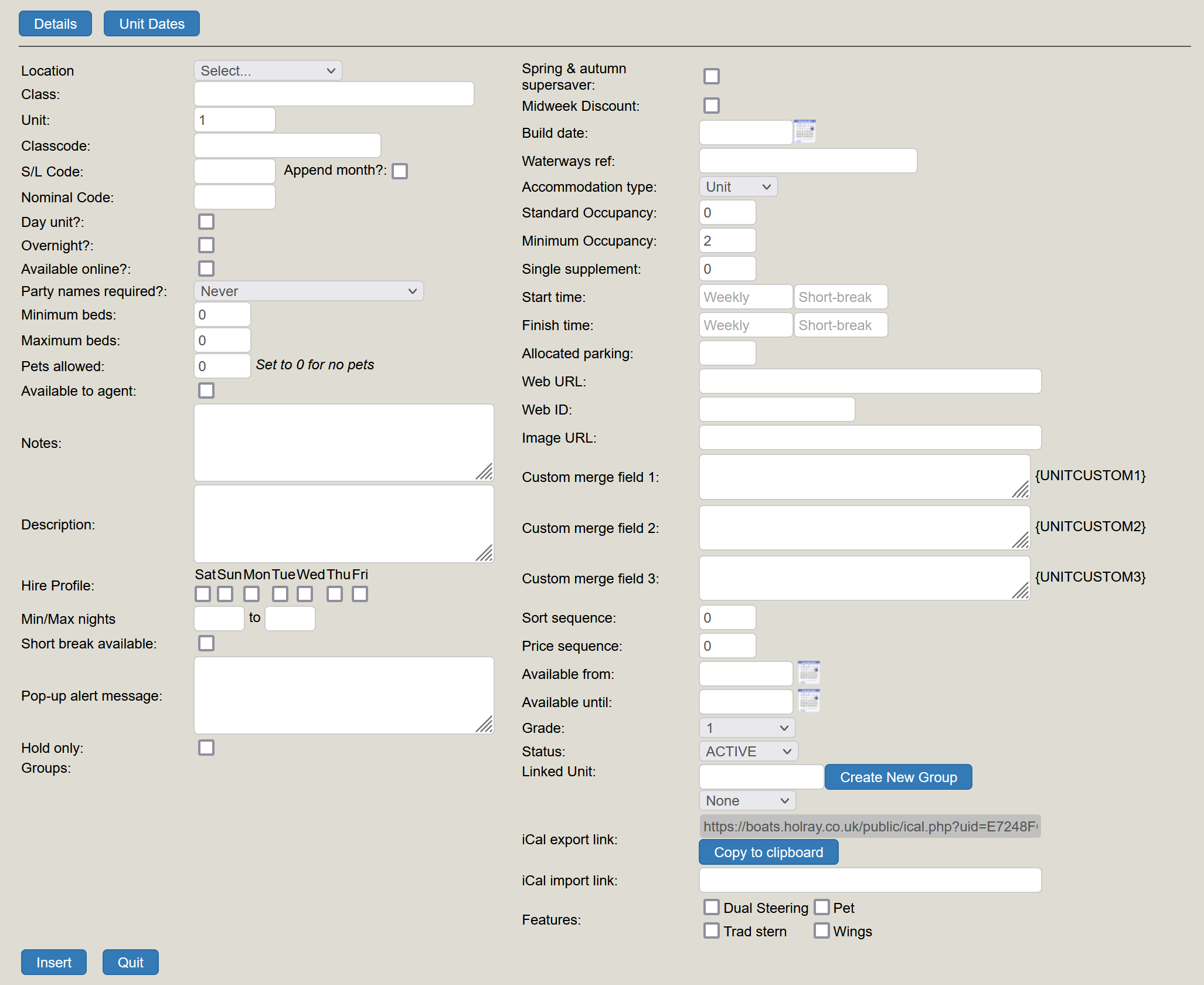
Once you have filled in your required details, click Insert. Your unit has now been added.
Setting your Unit dates
To set dates, simply click into your new unit and go onto Unit Dates. From here, a calendar pops up and you are able to set when the unit is available from and until within a season.
Green is available
Blue is booked
Red is unavailable
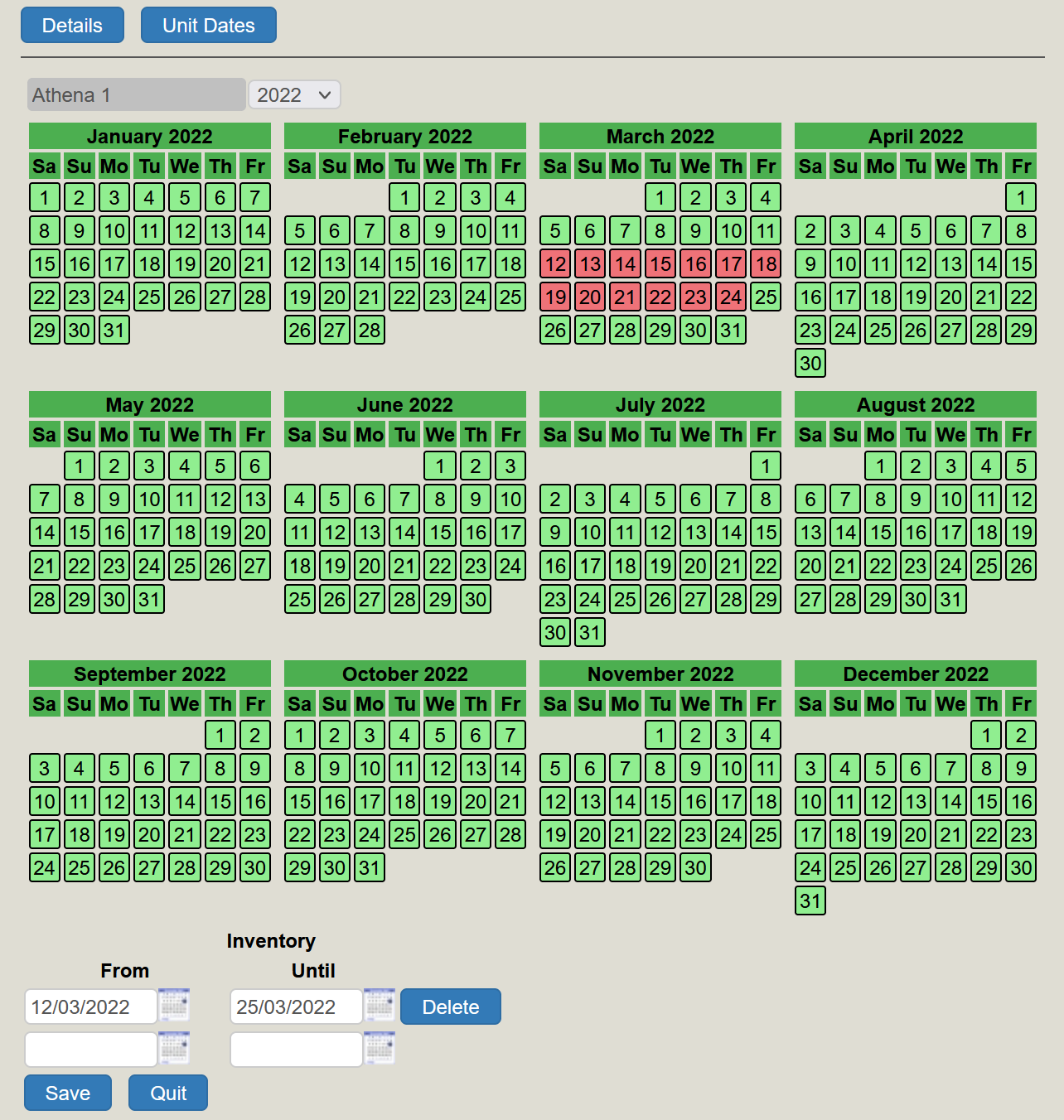
As you can see here - I have blocked off the the units availability from 12th March to 24th March. This means the unit is unbookable between these dates. You may want to do this if the unit requires maintenance or you want personal use of it!
If, in the example above, you wished to block off 2nd to 9th of September you would enter the 02/09/2021 and 09/09/21 in the 2 blank boxes and click the Save button.
Those of you who use Hoseasons will need to tell Hoseasons of the blocked off dates. Other agents who have a log in will see that the boat is unavailable, as will your website availability
You can view a simple video of how to do this Here.
Profiles
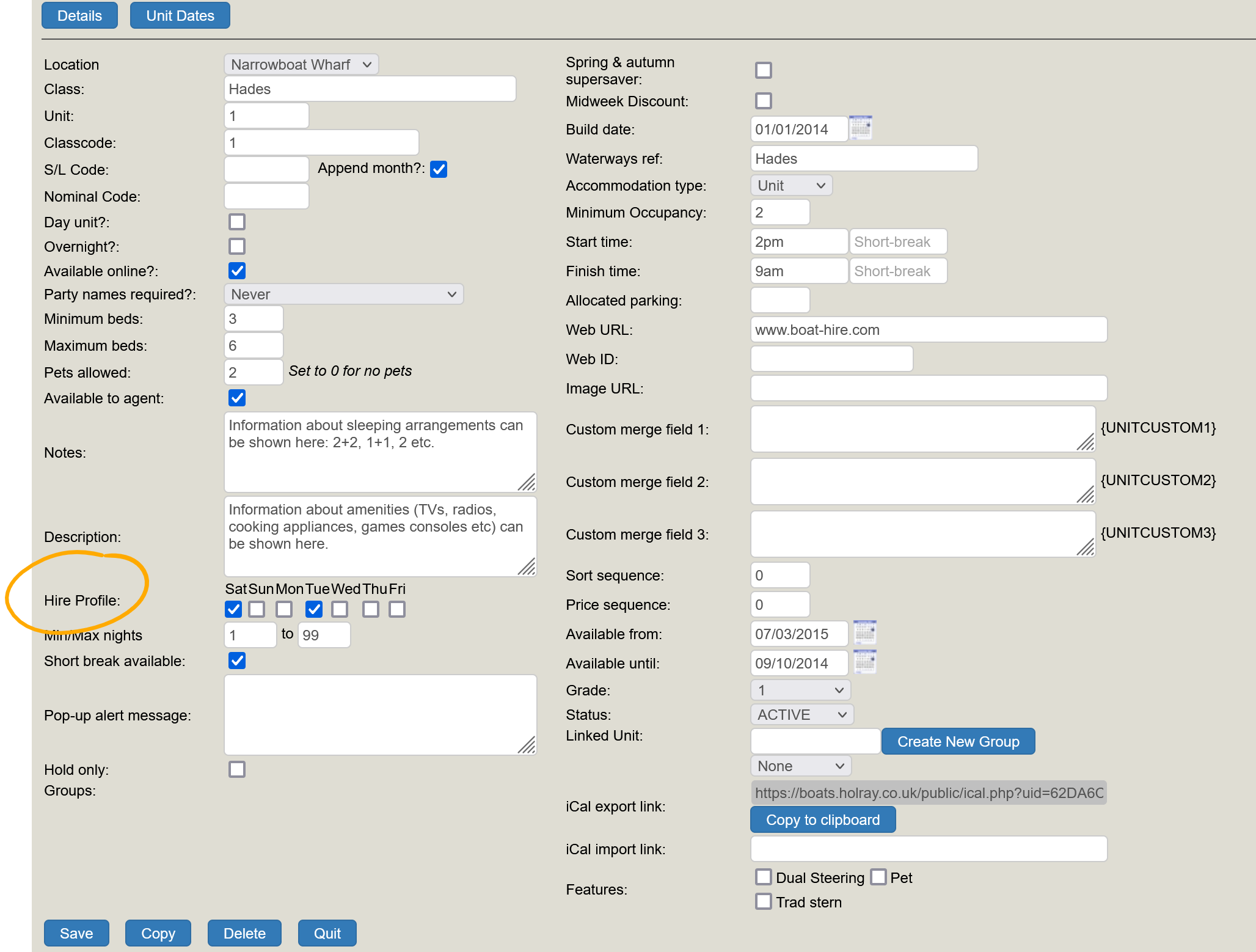
Here you can set your hire profile. The ticked boxes are the turnaround days for the unit.
Linked units
Linking Units is a great way to 'fool' your customer into thinking that you have, say, a four berth boat and a six bert boat when in fact - it is one and the same. Searches will bring back both the four and the six berth boat.
To create a Linked Unit, either go to create your new unit, or if it is an existing unit - go to the Units → Maintain Units. Click on the unit to be linked (or create your unit). On the right hand side towards the bottom you will see a section for Linked Unit. In this box type in what you would like the group to be called. This can be anything you want as long as it makes sense to you. Click on Create New Group and then Insert.
You only have to create a New Group once. Once it has been created, any unit can now join that group.
If you go to Units → Maintain Units, you should be able to see that your Units are linked under the column Link Group. When you make a booking on one of those units, all of the units in that linked group will book off - so you don't need to worry about double booking.