Table of Contents
Maintain Agents
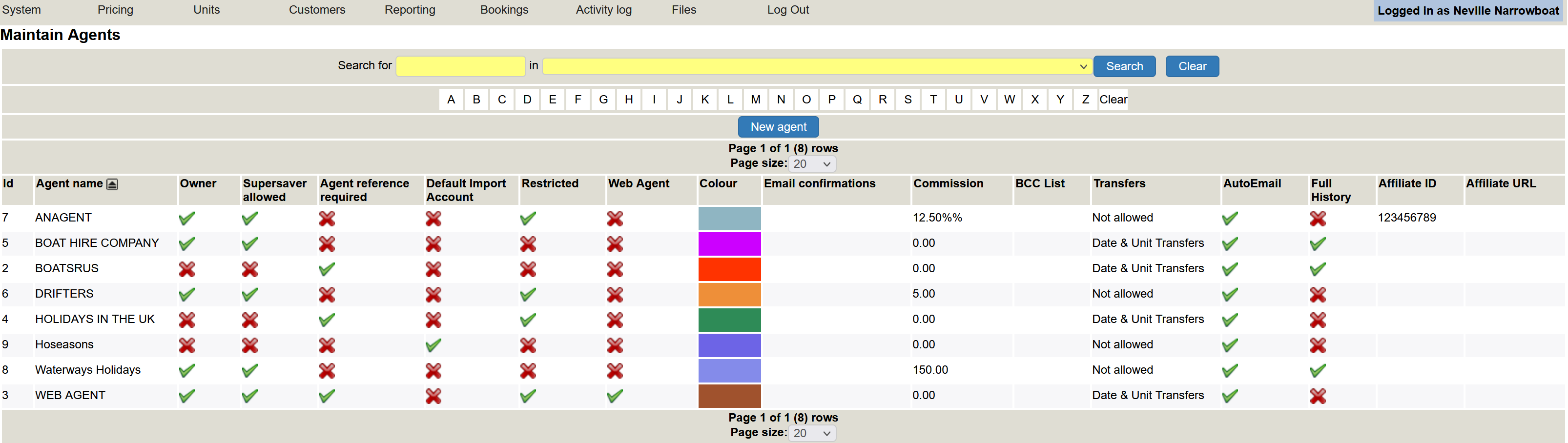
This is where you set your agents.
An agent can be Hoseasons, Waterways Holidays, Going Boating and also a web booker (web agent). Each agent can be assigned a colour. This will show on the chart view to allow you to clearly see where the booking came from.
Amending an Agent
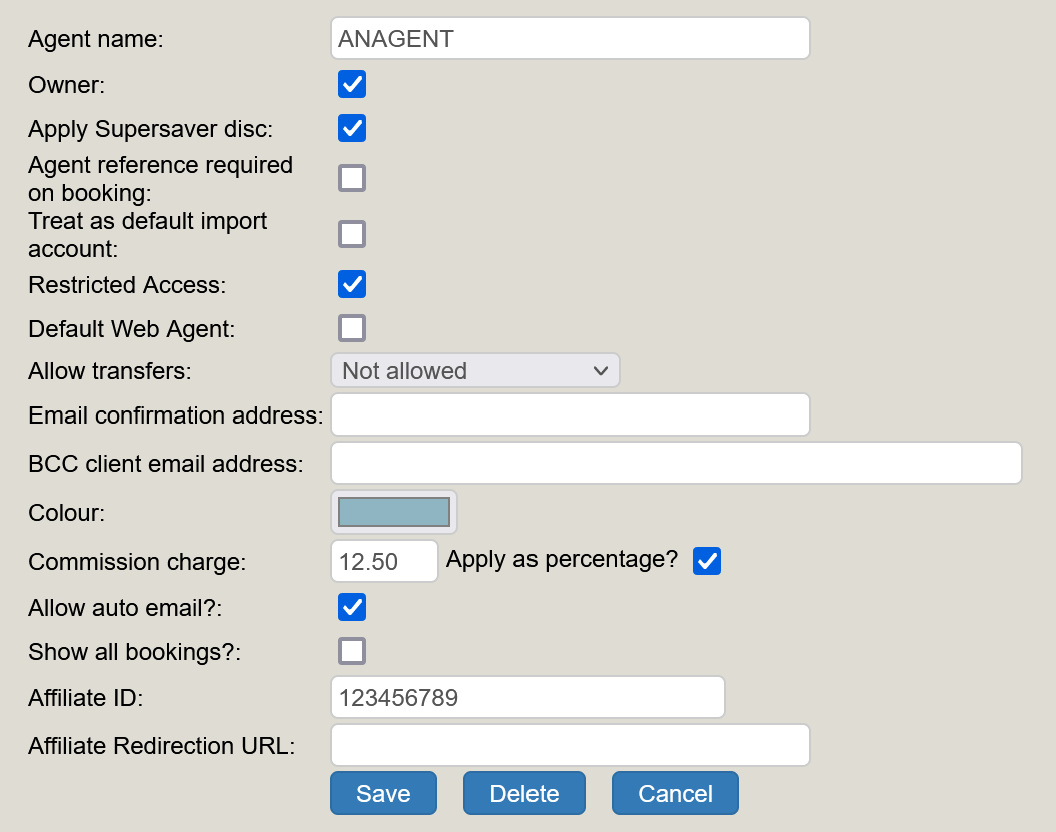
To amend an agent, click on the agent and a pop up window will open. You can edit or delete it.
Add New Agent
To add a new agent click the blue New Agent button.
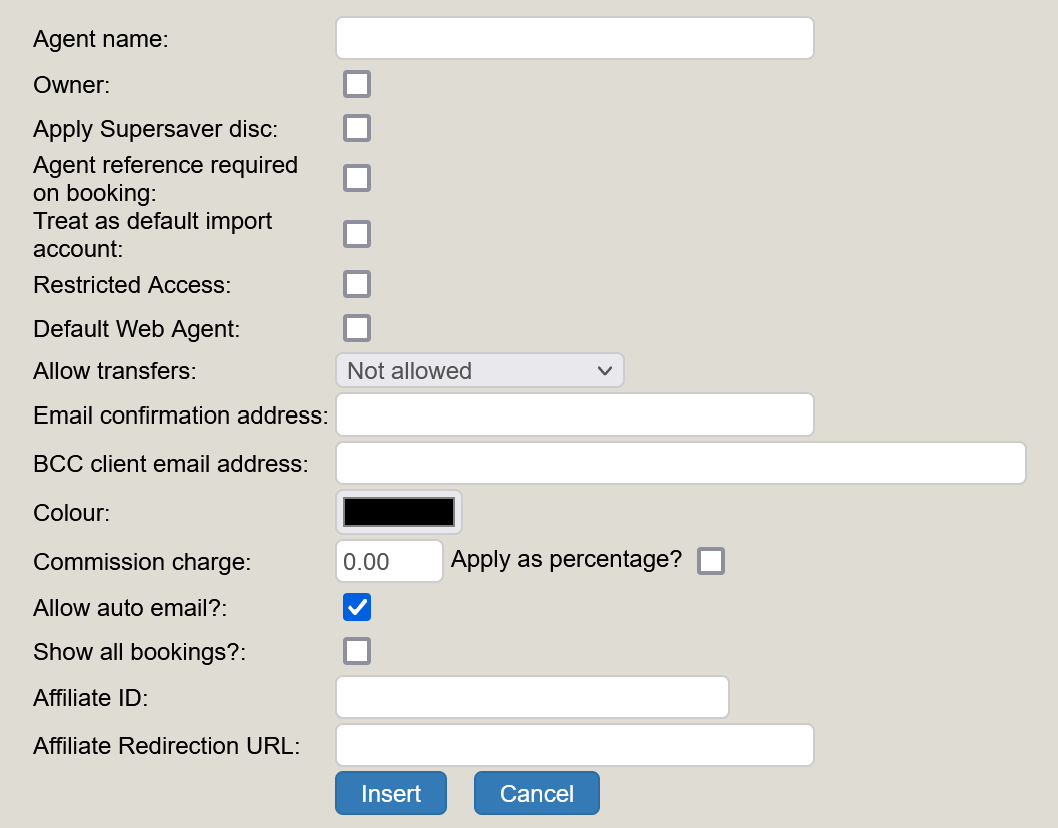
Owner = If you own the booking you can tick the 'Owner' box. If the agent owns the booking, then don't tick the box. For example, somebody booking via the web doesn't own the booking - you do, so you can tick the box. Whereas an agent such as Hoseasons may own the booking, in which case do not tick the box.
Apply Supersaver Discount = this is obsolete and due for removal iminently. Please disregard
Default Import account = If your business works with Hoseasons/Awaze you will need an Agent to attach their bookings to - ticking this box will tell the system that this is the default agent to use. See Working with Awaze/Hoseasons
Restricted Access = Most agents should have restricted access, unless you are happy for them to see all of your bookings too. Restricted access will limit the amount an agent can see when logging in to your system, and will allow them to see their booking details only. They will not be able to see your bookings, just the unavailability. You as the main user should not be restricted as you wish to see everything.
Web Agent = The web agent (your online web bookers) will be the default Web Agent in most cases.
Allow Transfers = If you want your agents to be able to transfer a booking, tick the 'Allow Transfers' box. Web bookers should not be able to transfer their bookings.
Email Confirmation Address = The email confirmation address refers to where you want to receive email confirmations of bookings, and if your agents want an email too. There is additional clarity if you hover over the email box.
Click in the coloured box to choose a colour for your agent.
Commission Charge = Commissions can be added, where applicable.
Allow Auto Email = The Allow Auto Email will be ticked by default. It refers to the system sending an email to the booker when their booking process is complete.
Show all bookings? = Only tick this if you want your agent to see all agent bookings. In most cases this will be left unticked.
Affiliate ID and Affiliate Redirection URL = The affiliate boxes apply to where an agent is affliated with another web site and therefore they link to each other. You may need to refer to the agent to clarify. In most cases they do not affiliate.
Once you have completed all the information required, click insert. Your agent is now added.